
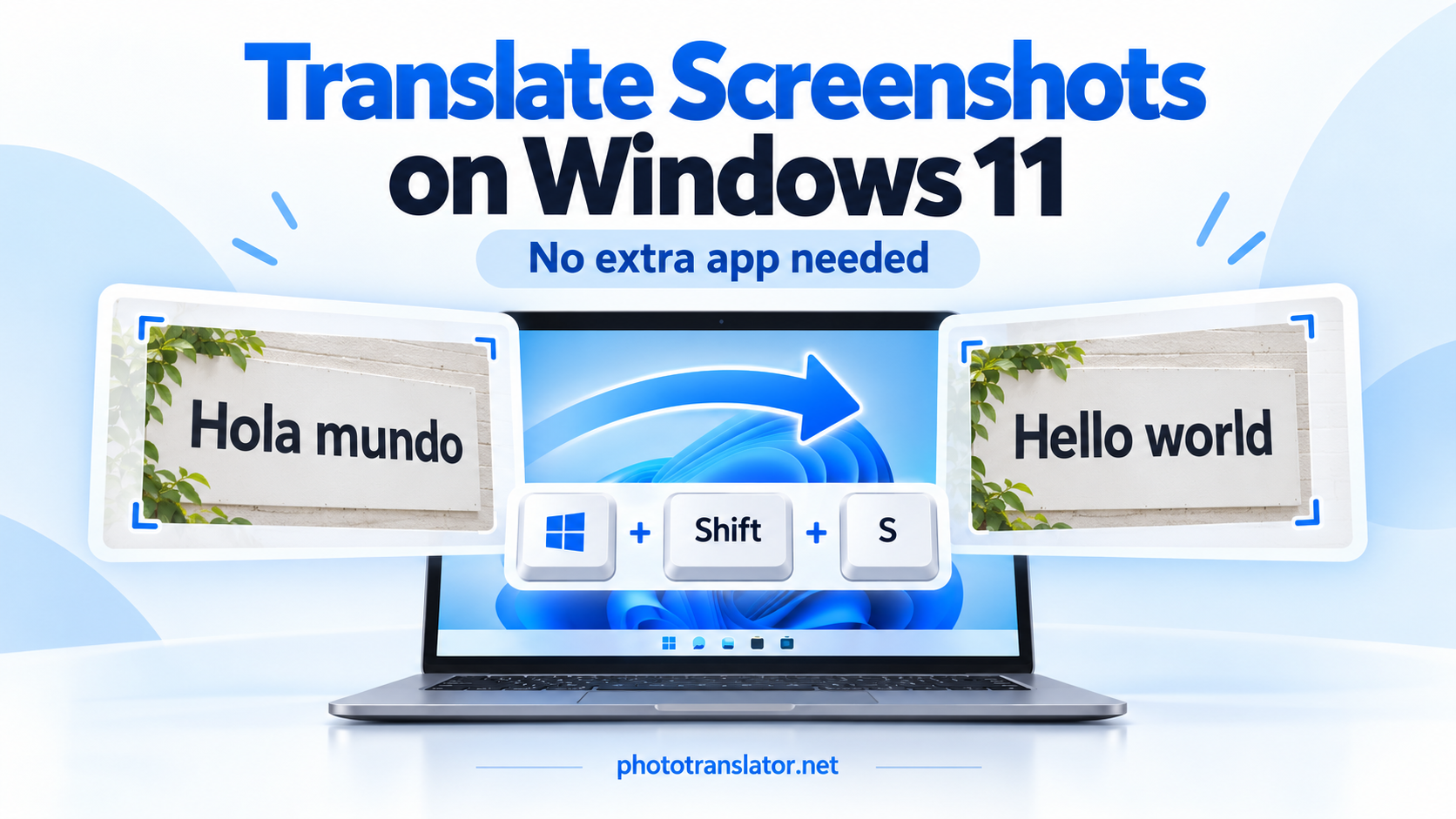
To translate a screenshot on Windows 11, capture the text with Windows + Shift + S, save it as a PNG, and upload it to an online screenshot translator. Choose the source and target languages, then click Translate. No extra translation app or browser extension is needed.
This works for text you cannot copy directly, such as a foreign-language app message, a website image, or a scanned PDF page.
1. Capture and Save Your Screenshot
Откройте сообщение или страницу, которую хотите перевести.
- Нажмите клавиши Windows + Shift + S.
- Выберите опцию «Прямоугольный фрагмент».
- Drag around the text you need.
- Нажмите на уведомление со скриншотом, чтобы открыть снимок в программе «Инструмент для создания скриншотов».
- Press Ctrl + S and save the image as a PNG.
Snipping Tool is included with Windows 11. Microsoft’s screenshot capture guide explains its capture and saving options.
Укажите полное предложение и любой заголовок, поясняющий его смысл. В случае сообщения об ошибке оставьте видимыми код ошибки и соответствующие надписи на кнопках.
Already have a saved screenshot? Skip this step.
2. Upload the Image and Choose Your Languages
Open Photo Translator in your browser.
Нажмите «Выбрать файл», выберите свой скриншот и просмотрите его предварительный просмотр. В поле «Исходный язык» выберите исходный язык, а в поле «Перевести на» — желаемый язык.
Например, чтобы перевести скриншот с испанского на английский:
- Source language: Spanish
- Перевести на: английский
If you do not recognize the original language, choose Auto Detect. Click Translate and keep the page open while it processes the image.
The tool uses optical character recognition—OCR—to read the text inside the screenshot before translating it.
3. Check the Result and Download It
Read the translation alongside the original. Check names, numbers, dates, and technical terms carefully.
В ходе нашего тестирования в браузере испанское изображение в формате PNG с текстом «El restaurante abre a las ocho» было правильно переведено как «Ресторан открывается в восемь». Загрузка переведённого изображения также прошла успешно.
Фактический результат тестирования в браузере: испанский текст, переведённый на английский. Это демонстрирует процесс загрузки изображений, а не тест, специфичный для Windows.
Click Download translated image to save the result.
The page also offers Copy translated text, but that button did not update the clipboard in our test browser. If it does not respond, try selecting and copying the displayed text manually.
For software messages, preserve the original error code when searching for help. Translation explains the wording; it does not diagnose or fix the problem.
If the Screenshot Does Not Translate Correctly
Try these adjustments before uploading it again:
- Увеличьте текст перед тем, как сделать снимок экрана. Увеличение размытого изображения после съемки не позволит восстановить утраченные детали.
- Capture one message at a time. Avoid unrelated panels and small background text.
- Используйте исходный файл. Приложения для обмена сообщениями могут сжимать скриншоты, из-за чего символы становятся менее разборчивыми.
- Select the source language manually if automatic detection gives an unexpected result.
If the page says “The server is busy. Please try later,” retry later rather than repeatedly clicking Translate.
Actual browser-test error. This request failed, but the message does not establish that WebP files are unsupported.
Альтернативный вариант: сначала извлечь текст
If your Snipping Tool version includes Text actions, open your capture and use it to copy recognized text. You can then paste the wording into a browser-based translation service.
Microsoft documents this feature in its Snipping Tool instructions. It is useful when you only need translated wording rather than a translated image.
For instructions on other devices, see how to extract text from screenshots on any device.
Часто задаваемые вопросы
1. How do I translate a screenshot to English on Windows 11?
Save the screenshot as a PNG, upload it to Photo Translator, choose the source language or Auto Detect, and select English as the target language. Click Translate and review the result.
2. Do I need to install an app or browser extension?
No. You can capture the image with Windows 11’s included Snipping Tool and translate it through a website opened in your browser.
3. Может ли программа «Snipping Tool» переводить текст со скриншотов?
Its Text actions feature extracts text from an image. In the workflow described here, you copy that text and use a separate browser-based service to translate it. Extraction and translation are different steps.
4. Can I translate a screenshot of a scanned PDF?
Да. Сделайте снимок абзаца или страницы в виде изображения и загрузите его. При этом будет переведен только сфотографированный фрагмент, а не весь PDF-файл. Для более длинных документов воспользуйтесь нашим руководством по переводу отсканированных PDF-файлов.
5. Почему перевод моего скриншота неверный или неполный?
Small text, blur, compression, cropped sentences, or incorrect language detection can affect the result. Take a clearer capture, include the full sentence, and select the source language manually when you know it.