
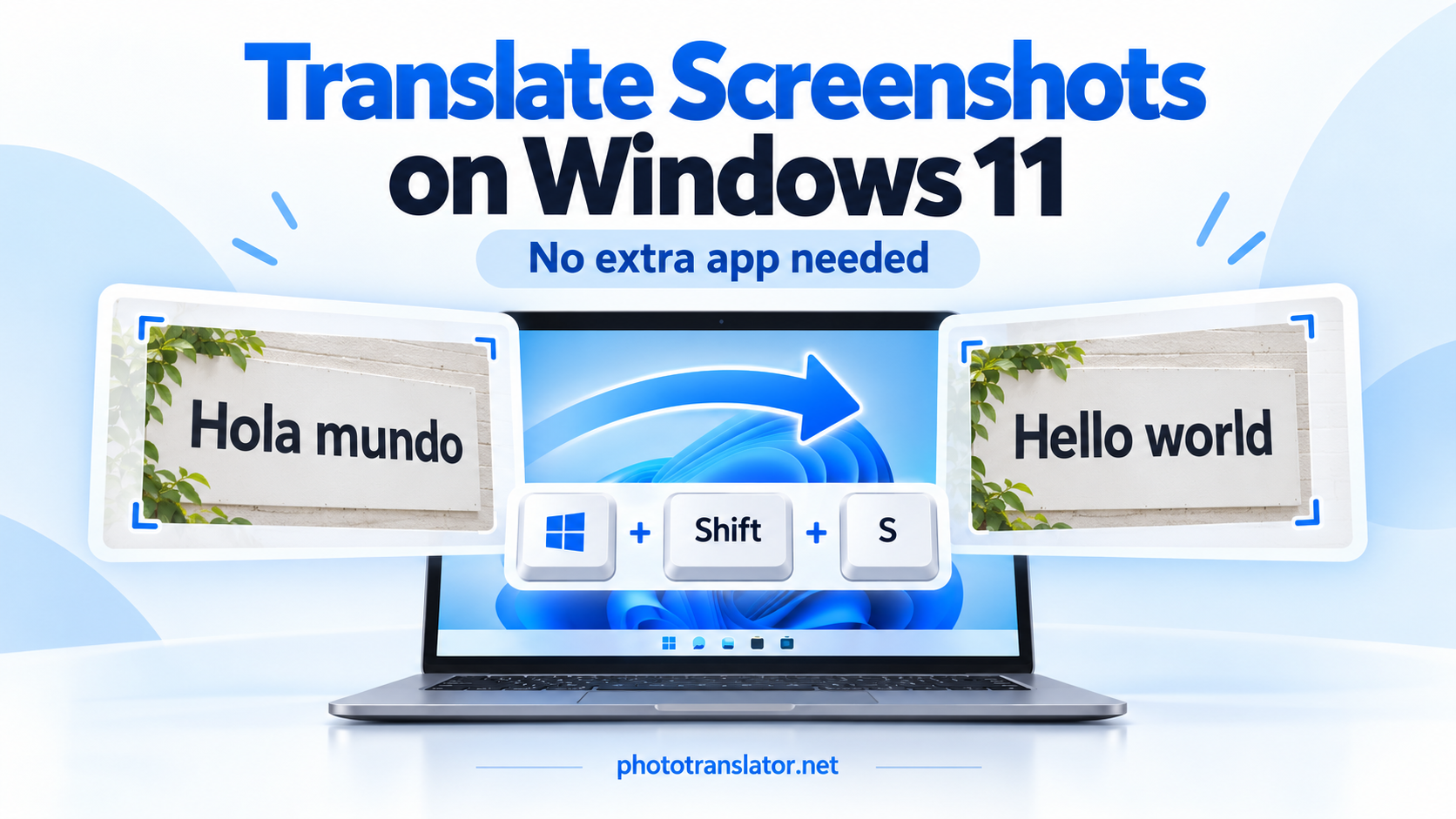
To translate a screenshot on Windows 11, capture the text with Windows + Shift + S, save it as a PNG, and upload it to an online screenshot translator. Choose the source and target languages, then click Translate. No extra translation app or browser extension is needed.
This works for text you cannot copy directly, such as a foreign-language app message, a website image, or a scanned PDF page.
1. Capture and Save Your Screenshot
Open the message or page you want to translate.
-
Press Windows + Shift + S.
-
Select the rectangular capture option.
-
Drag around the text you need.
-
Click the screenshot notification to open the capture in Snipping Tool.
-
Press Ctrl + S and save the image as a PNG.
Snipping Tool is included with Windows 11. Microsoft’s screenshot capture guide explains its capture and saving options.
Include the complete sentence and any heading that explains it. For an error message, keep the error code and relevant button labels visible.
Already have a saved screenshot? Skip this step.
2. Upload the Image and Choose Your Languages
Open Photo Translator in your browser.
Click Choose File, select your screenshot, and check the preview. Choose the original language under Source language and the language you want under Translate to.
For example, to translate a Spanish screenshot to English:
-
Source language: Spanish
-
Translate to: English
If you do not recognize the original language, choose Auto Detect. Click Translate and keep the page open while it processes the image.
The tool uses optical character recognition—OCR—to read the text inside the screenshot before translating it.
3. Check the Result and Download It
Read the translation alongside the original. Check names, numbers, dates, and technical terms carefully.
In our browser test, a Spanish PNG containing “El restaurante abre a las ocho” translated correctly to “The restaurant opens at eight.” The translated-image download also worked.
Actual browser-test result: Spanish text translated into English. This demonstrates the image-upload workflow, not a Windows-specific test.
Click Download translated image to save the result.
The page also offers Copy translated text, but that button did not update the clipboard in our test browser. If it does not respond, try selecting and copying the displayed text manually.
For software messages, preserve the original error code when searching for help. Translation explains the wording; it does not diagnose or fix the problem.
If the Screenshot Does Not Translate Correctly
Try these adjustments before uploading it again:
-
Enlarge the text before taking the screenshot. Enlarging a blurry image afterward cannot recover missing detail.
-
Capture one message at a time. Avoid unrelated panels and small background text.
-
Use the original file. Messaging apps can compress screenshots and make characters harder to read.
-
Select the source language manually if automatic detection gives an unexpected result.
If the page says “The server is busy. Please try later,” retry later rather than repeatedly clicking Translate.
Actual browser-test error. This request failed, but the message does not establish that WebP files are unsupported.
An Alternative: Extract the Text First
If your Snipping Tool version includes Text actions, open your capture and use it to copy recognized text. You can then paste the wording into a browser-based translation service.
Microsoft documents this feature in its Snipping Tool instructions. It is useful when you only need translated wording rather than a translated image.
For instructions on other devices, see how to extract text from screenshots on any device.
Frequently Asked Questions
1. How do I translate a screenshot to English on Windows 11?
Save the screenshot as a PNG, upload it to Photo Translator, choose the source language or Auto Detect, and select English as the target language. Click Translate and review the result.
2. Do I need to install an app or browser extension?
No. You can capture the image with Windows 11’s included Snipping Tool and translate it through a website opened in your browser.
3. Can Snipping Tool translate screenshot text?
Its Text actions feature extracts text from an image. In the workflow described here, you copy that text and use a separate browser-based service to translate it. Extraction and translation are different steps.
4. Can I translate a screenshot of a scanned PDF?
Yes. Capture the paragraph or page as an image and upload it. This translates the captured content—not the entire PDF. For longer documents, follow our scanned PDF translation guide.
5. Why is my screenshot translation wrong or incomplete?
Small text, blur, compression, cropped sentences, or incorrect language detection can affect the result. Take a clearer capture, include the full sentence, and select the source language manually when you know it.