
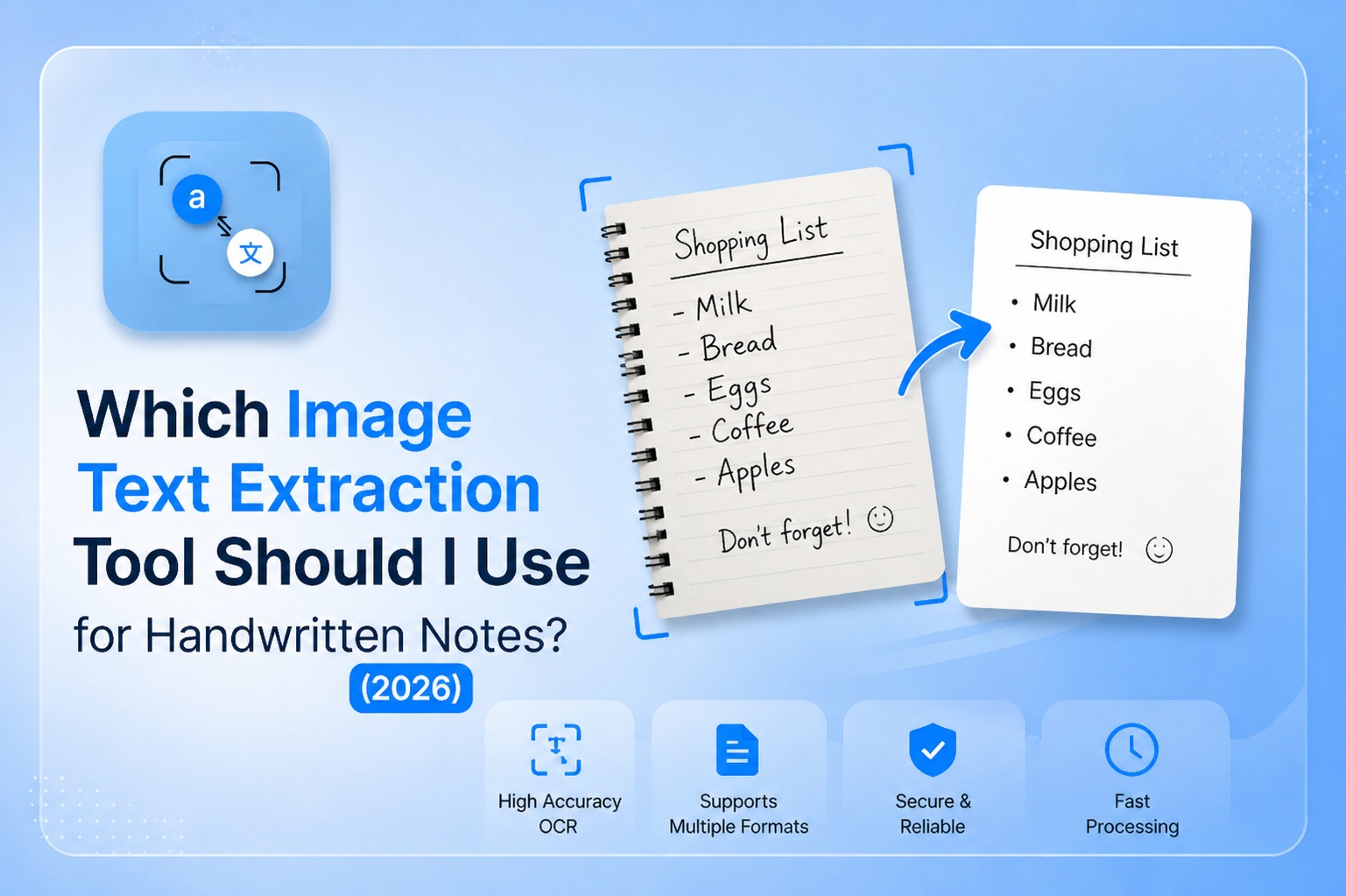
You just finished three pages of handwritten notes in class. Or maybe you found an old notebook full of important information. Now you want that text on your phone or computer without typing every single word yourself.
That is exactly what image text extraction tools are built for.
But here is the honest truth: handwriting is harder for these tools than printed text. Not every tool handles it the same way. Some are great. Some will give you Bad results with handwritten input.
This guide will show you exactly which tool works best, why handwriting is tricky for OCR, and how to get the most accurate results from your handwritten notes for free.
Quick Answer:
An image text extraction tool reads your photo and pulls out the text inside it using OCR (Optical Character Recognition). For handwritten notes specifically, accuracy depends heavily on your handwriting style, image quality, and which tool you choose. We compare the top five below
Can These Tools Really Read Handwriting?
Standard OCR was originally built for printed text. Fonts are consistent, spacing is even, and every letter looks the same. Handwriting is the opposite. Two people writing the letter "a" can produce something that looks completely different.
That said, modern AI-powered tools have improved a lot. According to Google AI research on handwriting recognition, newer neural network models can now read neat handwritten text with accuracy above 90% in many cases. The keyword there is neat.
For clear, printed style handwriting, these tools work very well. For loose Pixelate or messy notes, results vary by tool and image quality.
To understand the basic technology behind all of this read our beginner's guide: What Is OCR Technology and How Does It Work?
Why Handwriting Is Harder Than Printed Text
Before picking a tool, it helps to understand what makes handwriting difficult to extract.
There are four main reasons:
Inconsistent letter shapes. Every person writes slightly differently. The tool has to guess what each shape means without a fixed template to compare against.
Connected letters in cursive. When letters flow into each other without a clear break, the tool struggles to know where one letter ends and another begins.
Faded or blurred ink. Old notes, pencil writing, or low-quality paper reduce the contrast that the tool needs to identify characters accurately.
Mixed layouts. Arrows, diagrams, crossed-out words, margin notes, handwritten pages are messy in ways printed documents never are.
This same image quality challenge applies to receipt scanning too. You can see how we handled it in our guide on image text extraction software for receipts.
Five Tools Compared for Handwritten Notes
Here is an honest comparison of the most widely used tools for extracting text from handwritten images.
PhotoTranslator.net
Best for: Handwritten notes in multiple languages, students, quick free extraction
How it works: Upload your photo directly in the browser. The tool extracts text using AI-powered OCR and gives you the result in seconds. You can also translate the extracted text into 80+ languages instantly useful if your notes are in one language and you need them in another.
Handwriting accuracy: Good for neat handwriting. Works best with printed style handwriting in clear photos.
What makes it different: No login, no app, no cost. It also supports batch upload of up to 3 images at once. Privacy first your image is processed in RAM only and deleted immediately.
Google Lens
Best for: Real time handwriting reading on your phone
How it works: Open Google Lens on Android or through the Google app on iPhone. Point your camera at the handwritten notes. Tap the text you want to copy.
Handwriting accuracy: One of the strongest for everyday handwriting. Google has trained its models on massive amounts of handwritten data.
Microsoft OneNote OCR
Best for: People already using Microsoft 365 or OneNote for notes
How it works: Insert an image into a OneNote page. Right click the image and select "Copy Text from Picture." The extracted text appears as plain text that you can paste anywhere.
Handwriting accuracy: Decent for printed handwriting. Struggles more with cursive than Google Lens does.
Adobe Scan
Best for: Scanning full notebooks or multiple pages into searchable PDFs
How it works: Use the Adobe Scan app to photograph your notes. It creates a PDF with text recognition built in, making your handwritten content searchable.
Handwriting accuracy: Good for neat handwriting. The auto enhance feature improves image quality before processing.
Apple Live Text
Best for: iPhone and iPad users who want instant on device handwriting reading
How it works: Open any photo of handwritten text in your iPhone Photos app. Live Text automatically highlights the text. Tap to copy it no upload needed.
Handwriting accuracy: Very good for English handwriting. Limited language support compared to other tools.
Quick Comparison Table
| Tool | Free | Translation | Batch Upload | Best Handwriting Type | |
| PhotoTranslator.net | ✅ Yes | ✅ 80+ languages | ✅ 3 images | Neat + multilingual | |
| Google Lens | ✅ Yes | ✅ Yes | ❌ No | Most handwriting types | |
| Microsoft OneNote | ✅ Yes | ❌ No | ❌ No | Printed handwriting | |
| Adobe Scan | ⚠️ Limited | ❌ No | ✅ Multi-page | Neat, structured notes | |
| Apple Live Text | ✅ Yes | ❌ No | ❌ No | English handwriting |
Which Tool Fits Your Handwriting Style?
Not sure which one to pick? Use this quick guide:
Your handwriting is neat and print style → Any tool works. Start with PhotoTranslator.net
for the fastest free result with translation built in.
Your handwriting is cursive or joined → Google Lens gives the best accuracy for connected writing.
Your notes are in a foreign language → PhotoTranslator is the only free tool that extracts and translates in one step across 80+ languages.
You have a full notebook to digitize → Adobe Scan handles multi-page documents better than single-image tools.
You are on an iPhone and need something instant → Apple Live Text requires zero upload just open your photo and copy.
Your notes are faded or old → Increase brightness and contrast in your phone's photo editor before uploading to any tool. No OCR tool reads faded images well without some pre-processing.
Step-by-Step: How to Extract Text from Handwritten Notes Free
Here is how to do it using a browser based tool no download, no account needed:
Step 1: Take a clear photo of your notes. Use natural light. Hold the camera directly above the page no angle. Make sure all text is in the frame and in focus. Tap the screen to focus before shooting.
Step 2: Edit the photo if needed. Open the photo in your gallery. Increase brightness slightly. Crop out anything that is not text borders, desk surfaces, irrelevant objects.
Step 3: Go to the tool in your browser. Open your browser on phone or computer. Navigate to the tool of your choice.
Step 4: Upload your image. Drag and drop the photo or tap to browse your files. Most tools accept JPG, PNG, and WebP up to 10MB.
Step 5: Review and copy the extracted text. The tool processes your image and shows the extracted text. Read through it quickly handwriting OCR is not always 100% perfect. Fix any obvious errors, then copy the text to use wherever you need it.
Step 6: Translate if needed. If your notes are in another language or you want to translate via image into English or any other language, select your target language and click Translate. Done.
Who Actually Needs This?
Students: Lecture notes, study cards and textbook annotations. Instead of retyping everything before an exam, photograph your notes and get digital text in seconds.
Researchers: Reading old manuscripts, historical documents, or field notes written by hand. An image to text translator makes these searchable and shareable.
Professionals: Meeting notes, whiteboard photos, sticky notes. Digitize them instantly and drop the text into your email or document.
Multilingual note takers: Writing notes in one language and needing them in another is a real daily challenge for many people. Tools that combine OCR with translation solve both problems in one step.
Teachers: Grading handwritten assignments becomes easier when you can extract and search text across multiple student submissions.
Frequently Asked Questions
Q: Can an image to text converter read cursive handwriting?
A: Some can, but accuracy drops significantly compared to print style handwriting. Google Lens currently handles cursive best among free tools. For the cleanest results, photograph cursive in bright, even light and keep the page as flat as possible.
Q: Is there a free tool to extract text from handwritten images?
A: Yes. Several free options exist, including Google Lens, Apple Live Text, Microsoft OneNote, and browser based tools that require no login or download. Most handle neat handwriting well at no cost.
Q: How accurate is OCR for handwritten notes?
A: For neat, printed style handwriting with a clear photo, accuracy typically reaches 85–95%. For cursive or messy handwriting, it can drop to 60–75% depending on the tool and image quality. According to MIT research on handwriting recognition, AI models are improving rapidly but have not yet matched human reading ability for all handwriting styles.
Q: Can I translate my handwritten notes into English from a photo?
A: Yes. Tools that combine OCR with machine translation let you photo translate to English or any other language directly from a handwritten image. Upload your photo, extract the text, and translate in one step.
Q: What image format works best for handwriting extraction?
A: JPG and PNG both work well. The most important factor is not the format it is the image quality. A sharp, well lit JPG outperforms a blurry PNG every time.
Q: Do these tools store my handwritten notes?
A: It depends on the tool. Privacy focused browser-based tools process your image in memory only and delete it immediately after. Always check the privacy policy of any service before uploading sensitive or personal notes. Read more about data privacy and image translation tools.
Q: Can I extract text from a photo of a whiteboard with handwriting?
A: Yes. Whiteboards actually tend to give better results than paper because the contrast between marker and surface is usually high. Make sure to photograph straight on and avoid glare from overhead lights.
Final Words
Handwriting OCR has come a long way. You no longer need to type out your notes by hand a clear photo and the right tool get the job done in seconds.
For most people, the choice comes down to this:
If you want fast, free, and browser-based with translation built in use an online image translator tool that requires no signup.
If you want the highest accuracy for cursive Google Lens on your phone is hard to beat.
If you need multi page digitization Adobe Scan handles notebooks better than single Image tools.
The best tool is simply the one that fits how you work. Try one, test it with your own handwriting, and see the result yourself.
References:
[1] Google AI Blog Handwriting Recognition Research: https://ai.googleblog.com
[2] MIT CSAIL Document Recognition Systems: https://www.csail.mit.edu
[3] Tesseract OCR Open Source Engine: https://github.com/tesseract-ocr/tesseract
[4] G2 OCR Software Category: https://www.g2.com/categories/ocr