

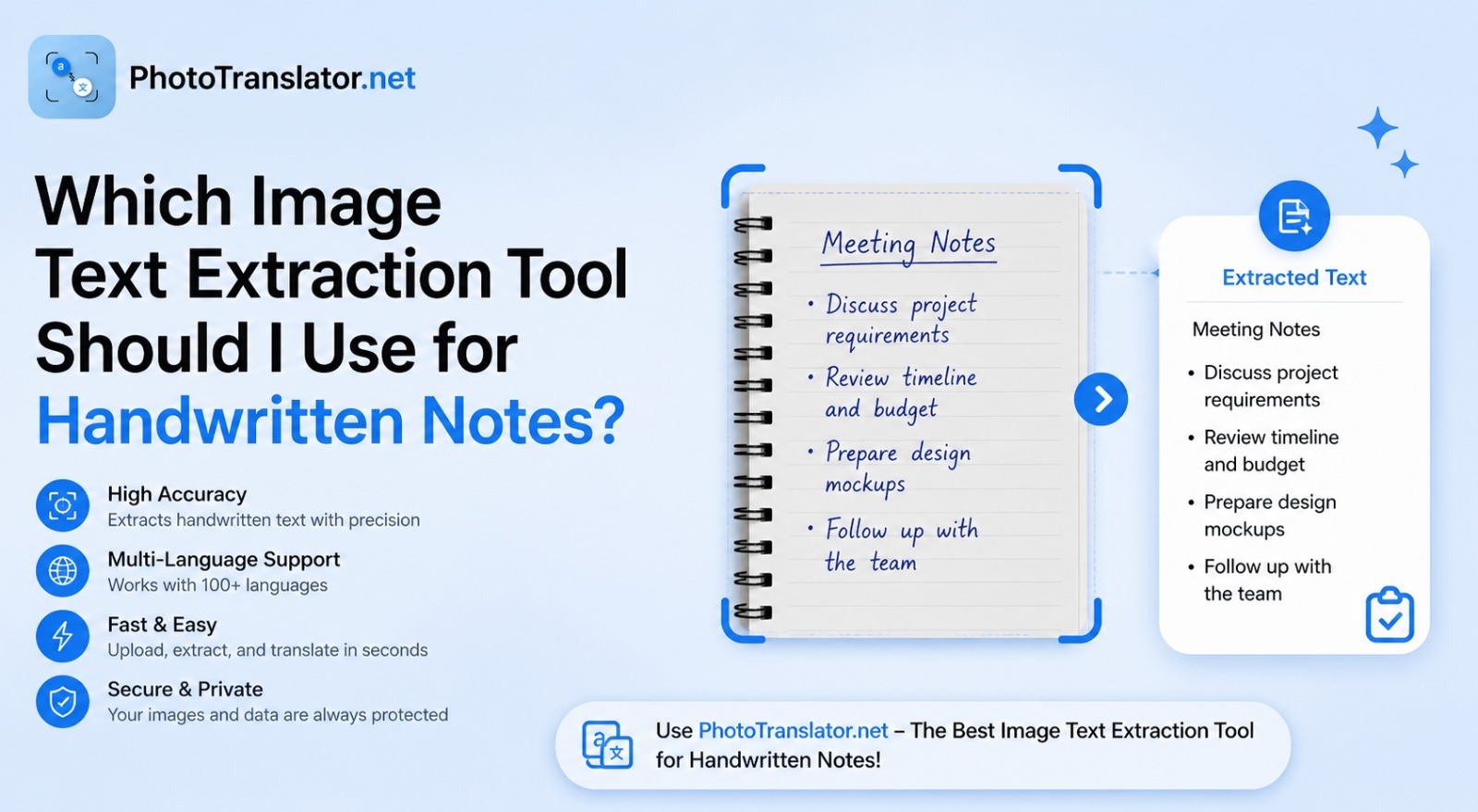
수업 시간에 손으로 쓴 3페이지 분량의 필기를 막 마쳤습니다. 아니면 중요한 정보로 가득 찬 낡은 공책을 발견했을 수도 있겠네요. 이제 그 내용을 직접 한 글자 한 글자 입력하지 않고도 휴대폰이나 컴퓨터에 옮기고 싶으실 겁니다.
바로 그 목적을 위해 이미지 텍스트 추출 도구가 개발된 것입니다.
하지만 솔직히 말해서, 이러한 도구들은 인쇄된 텍스트보다 필기체를 처리하는 데 더 어려움을 겪습니다. 모든 도구가 필기체를 똑같이 처리하는 것은 아닙니다. 아주 잘 처리하는 도구도 있지만, 필기체 입력을 하면 결과가 좋지 않은 도구도 있습니다.
This guide will show you exactly which tool works best, why handwriting is tricky for OCR, and how to get the most accurate results from your handwritten notes for free.
간단한 답변:
이미지 텍스트 추출 도구는 사진을 분석하여 OCR(광학 문자 인식) 기술을 통해 이미지 내의 텍스트를 추출합니다. 특히 손글씨 메모의 경우, 정확도는 필체, 이미지 품질, 그리고 선택한 도구에 따라 크게 달라집니다. 아래에서 상위 5개 도구를 비교해 보겠습니다.
Can These Tools Really Read Handwriting?
Standard OCR was originally built for printed text. Fonts are consistent, spacing is even, and every letter looks the same. Handwriting is the opposite. Two people writing the letter "a" can produce something that looks completely different.
That said, modern AI-powered tools have improved a lot. According to Google AI research on handwriting recognition, newer neural network models can now read neat handwritten text with accuracy above 90% in many cases. The keyword there is neat.
For clear, printed style handwriting, these tools work very well. For loose Pixelate or messy notes, results vary by tool and image quality.
To understand the basic technology behind all of this read our beginner's guide: What Is OCR Technology and How Does It Work?
Why Handwriting Is Harder Than Printed Text
도구를 선택하기 전에, 필기체를 추출하기 어렵게 만드는 요인이 무엇인지 이해해 두면 도움이 됩니다.
There are four main reasons:
Inconsistent letter shapes. Every person writes slightly differently. The tool has to guess what each shape means without a fixed template to compare against.
연필체로 쓴 글자 간의 연결. 글자들이 뚜렷한 구분 없이 서로 이어져 있을 때, 인식 도구는 한 글자가 어디서 끝나고 다른 글자가 어디서 시작되는지 파악하기 어렵습니다.
Faded or blurred ink. Old notes, pencil writing, or low-quality paper reduce the contrast that the tool needs to identify characters accurately.
Mixed layouts. Arrows, diagrams, crossed-out words, margin notes, handwritten pages are messy in ways printed documents never are.
Five Tools Compared for Handwritten Notes
Here is an honest comparison of the most widely used tools for extracting text from handwritten images.
PhotoTranslator.net
Best for: Handwritten notes in multiple languages, students, quick free extraction
사용 방법: 브라우저에서 직접 사진을 업로드하세요. 이 도구는 AI 기반 OCR 기술을 활용해 텍스트를 추출하고, 몇 초 만에 결과를 제공합니다. 또한 추출된 텍스트를 80개 이상의 언어로 즉시 번역할 수 있어, 메모가 한 언어로 작성되어 있지만 다른 언어로 필요할 때 유용합니다.
Handwriting accuracy: Good for neat handwriting. Works best with printed style handwriting in clear photos.
What makes it different: No login, no app, no cost. It also supports batch upload of up to 3 images at once. Privacy first your image is processed in RAM only and deleted immediately.
Google Lens
Best for: Real time handwriting reading on your phone
How it works: Open Google Lens on Android or through the Google app on iPhone. Point your camera at the handwritten notes. Tap the text you want to copy.
Handwriting accuracy: One of the strongest for everyday handwriting. Google has trained its models on massive amounts of handwritten data.
Microsoft OneNote OCR
Best for: People already using Microsoft 365 or OneNote for notes
사용 방법: OneNote 페이지에 이미지를 삽입합니다. 이미지를 마우스 오른쪽 버튼으로 클릭한 다음 “그림에서 텍스트 복사”를 선택합니다. 추출된 텍스트는 일반 텍스트로 표시되며, 원하는 곳에 붙여넣을 수 있습니다.
필기 인식 정확도: 인쇄체 필기의 경우 꽤 괜찮은 편입니다. 필기체 필기의 경우 구글 렌즈보다 인식에 더 어려움을 겪습니다.
Adobe Scan
가장 적합한 용도: 노트 전체나 여러 페이지를 검색 가능한 PDF로 스캔할 때
사용 방법: Adobe Scan 앱을 사용하여 메모를 촬영하세요. 앱은 내장된 텍스트 인식 기능을 통해 PDF 파일을 생성하므로, 손글씨로 작성된 내용도 검색할 수 있게 됩니다.
Handwriting accuracy: Good for neat handwriting. The auto enhance feature improves image quality before processing.
Apple Live Text
Best for: iPhone and iPad users who want instant on-device handwriting reading
How it works: Open any photo of handwritten text in your iPhone Photos app. Live Text automatically highlights the text. Tap to copy it; no upload needed.
Handwriting accuracy: Very good for English handwriting. Limited language support compared to other tools.
Quick Comparison Table
| 도구 | Free | Translation | Batch Upload | Best Handwriting Type | |
| PhotoTranslator.net | ✅ Yes | ✅ 80개 이상의 언어 | ✅ 3 images | Neat + multilingual | |
| Google Lens | ✅ Yes | ✅ Yes | ❌ No | Most handwriting types | |
| Microsoft OneNote | ✅ Yes | ❌ No | ❌ No | Printed handwriting | |
| Adobe Scan | ⚠️ Limited | ❌ No | ✅ Multi-page | 깔끔하고 체계적인 노트 | |
| Apple Live Text | ✅ Yes | ❌ 아니요 | ❌ No | English handwriting |
Which Tool Fits Your Handwriting Style?
Not sure which one to pick? Use this quick guide:
Your handwriting is neat and print style → Any tool works. Start with PhotoTranslator.net for the fastest free result, with built-in translation.
Your handwriting is cursive or joined → Google Lens gives the best accuracy for connected writing.
Your notes are in a foreign language → PhotoTranslator.net is the only free tool that extracts and translates in one step across 80+ languages.
You have a full notebook to digitize → Adobe Scan handles multi-page documents better than single-image tools.
You are on an iPhone and need something instant → Apple Live Text requires zero upload; just open your photo and copy.
Your notes are faded or old → Increase brightness and contrast in your phone's photo editor before uploading to any tool. No OCR tool reads faded images well without some pre-processing.
Step-by-Step: How to Extract Text from Handwritten Notes for Free
Here is how to do it using a browser-based tool: no download, no account needed:
Step 1: Take a clear photo of your notes. Use natural light. Hold the camera directly above the page, no angle. Make sure all text is in the frame and in focus. Tap the screen to focus before shooting. Open the gallery and upload the image in the tool.
Step 2: Upload your image. Drag and drop the photo or tap to browse your files. Most tools accept JPG, PNG, and WebP up to 10MB.
Step 5: Results appear. When you upload your image, you will select the language you want to translate & click on translate it takes maximum 30 sec and the results appear on your screen then you have two options copy text & download full translated image its very simple to use.
Who Actually Needs This?
Students: Lecture notes, study cards and textbook annotations. Instead of retyping everything before an exam, photograph your notes and get digital text in seconds.
Researchers: Reading old manuscripts, historical documents, or field notes written by hand. An image to text translator makes these searchable and shareable.
Professionals: Meeting notes, whiteboard photos, sticky notes. Digitize them instantly and drop the text into your email or document.
Multilingual note takers: Writing notes in one language and needing them in another is a real daily challenge for many people. Tools that combine OCR with translation solve both problems in one step.
Teachers: Grading handwritten assignments becomes easier when you can extract and search text across multiple student submissions.
Frequently Asked Questions
Q: Can an image to text converter read cursive handwriting?
A: Some can, but accuracy drops significantly compared to print-style handwriting. Google Lens currently handles cursive best among free tools. For the cleanest results, photograph cursive in bright, even light and keep the page as flat as possible.
Q: Is there a free tool to extract text from handwritten images?
A: Yes. Several free options exist, including Google Lens, Apple Live Text, Microsoft OneNote, and browser-based tools that require no login or download. Most handle neat handwriting well at no cost.
Q: How accurate is OCR for handwritten notes?
A: For neat, printed-style handwriting with a clear photo, accuracy typically reaches 85–95%. For cursive or messy handwriting, it can drop to 60–75% depending on the tool and image quality. According to MIT research on handwriting recognition, AI models are improving rapidly but have not yet matched human reading ability for all handwriting styles.
Q: Can I translate my handwritten notes into English from a photo?
A: Yes. Tools that combine OCR with machine translation let you photo translate to English or any other language directly from a handwritten image. Upload your photo, extract the text, and translate in one step.
Q: What image format works best for handwriting extraction?
A: JPG and PNG both work well. The most important factor is not the format it is the image quality. A sharp, well lit JPG outperforms a blurry PNG every time.
Q: Do these tools store my handwritten notes?
A: It depends on the tool. Privacy focused browser-based tools process your image in memory only and delete it immediately after. Always check the privacy policy of any service before uploading sensitive or personal notes. Read more about data privacy and image translation tools.
Q: Can I extract text from a photo of a whiteboard with handwriting?
A: Yes. Whiteboards actually tend to give better results than paper because the contrast between marker and surface is usually high. Make sure to photograph straight on and avoid glare from overhead lights.
Final Words
Handwriting OCR has come a long way. You no longer need to type out your notes by hand; a clear photo and the right tool get the job done in seconds.
For most people, the choice comes down to this:
If you want fast, free, and browser-based with translation built in use an online image translator tool that requires no sign-up.
If you want the highest accuracy for cursive, Google Lens on your phone is hard to beat.
If you need multi-page digitization, Adobe Scan handles notebooks better than single-image tools.
The best tool is simply the one that fits how you work. Try one, test it with your own handwriting, and see the result yourself.