
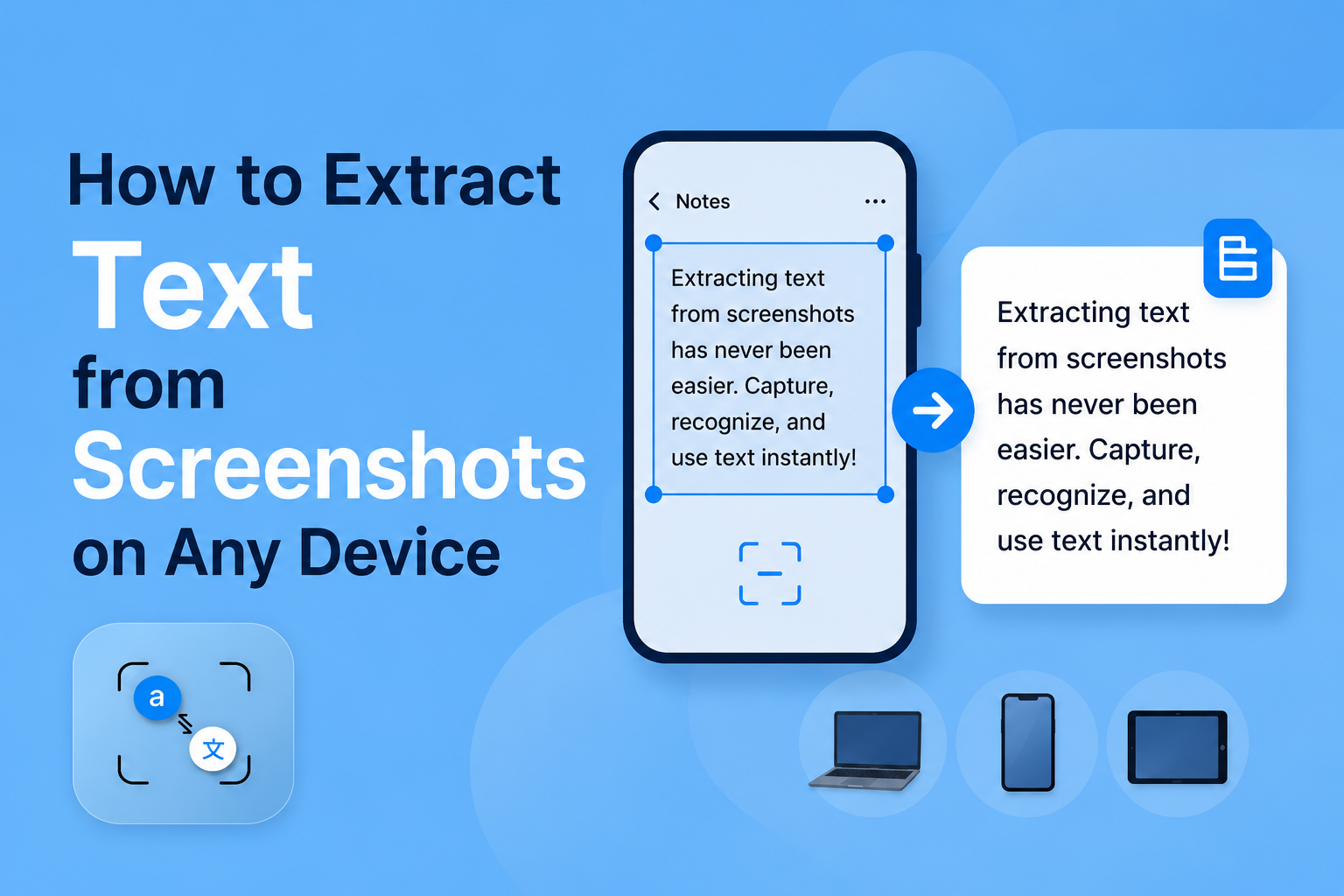
Stop retyping text you can already see on your screen. Whether it's a quote from a PDF, an address from a photo, or content from a scanned document, there's a faster way. This blog shows you exactly how to extract text from a screenshot on every major device, completely free, in under a minute.
No tech skills needed. No expensive software required.
What Is Text Extraction from Screenshots?
Text extraction from screenshots, also called OCR (Optical Character Recognition), is the process of converting text within an image into actual, selectable, editable text.
Think of it this way: a screenshot is just a picture. The words you see in it aren't "real" text on your device can't copy or search them. OCR technology reads printed characters and converts them into digital text. You can actually use and learn about the behind-the-scenes of online photo translator tools.
Common real world use cases:
- Copying all the text from a screenshot of an article
- Extracting an address or phone number from a photo
- Digitizing text from scanned documents or printed receipts
- Pulling data from PDF screenshots that don't allow copy-paste
- Extracting handwritten notes from a photo
- Converting foreign language text from an image for translation
Now, let's get into the methods organized by your device.
How to Extract Text from Screenshots By Device
A. On iPhone / iPad (iOS 15 and Later)
Apple's Live Text feature makes image to text extraction completely native no app download needed.
Steps:
- Open your Photos app and find the screenshot
- Tap the screenshot to open it
- Look for the Live Text icon (it looks like lines of text inside a box) in the bottom right corner
- Tap the text in the image, and it will become highlighted and selectable
- Long-press on any word, then drag to select the full text you want
- Tap Copy
Works with: iOS 15+, iPadOS 15+. Supports printed text, handwriting, and even foreign languages.
Pro tip: Live Text also works directly in the Camera app in real time. Point your camera at printed text and tap the Live Text icon to copy it instantly.
B. On Android Devices (Google Lens)
Android users can use Google Lens, built into most Android phones, to extract text from images or screenshots.
Steps:
- Open your Google Photos app
- Find and open your screenshot
- Tap the Lens icon (a small square with a circle) at the bottom
- Google Lens will automatically scan and highlight detected text
- Tap "Select text" from the options
- Drag to select the text you want, then tap Copy
Alternative method:
- Long-press your screenshot in the gallery
- Tap "Search with Lens"
- Switch to the "Text" tab
Works on: Most Android 6.0+ devices with Google Photos installed. Also supports multilingual text.
C. On Windows PC
Windows 10 and 11 both offer built-in ways to extract text from screenshots no third-party software required.
Method 1 PowerToys Text Extractor (Best Option):
- Download Microsoft PowerToys from the Microsoft Store (free)
- Open PowerToys and enable "Text Extractor."
- Use the keyboard shortcut Win + Shift + T
- Draw a selection box around the text in any screenshot
- The extracted text is automatically copied to your clipboard
Method 2 Snipping Tool (Windows 11):
- Open Snipping Tool (search in Start menu)
- Open your screenshot file inside it
- Click "Text Actions" in the toolbar
- The tool highlights all detected text. Click to copy what you need
Best for: Documents, PDFs, presentations, and screenshots with dense text blocks.
D. On Mac (macOS Monterey and Later)
Mac users get native OCR through Live Text, the same system Apple uses on iPhone.
Steps:
- Open your screenshot in Preview or directly in Photos
- Hover over any text in the image, and your cursor should change to an "I-beam" (text cursor)
- Click and drag to select the text you want
- Right-click → Copy (or press Cmd + C)
Alternative Quick Look:
- Select your screenshot file in Finder
- Press Space to open Quick Look
- Hover over text — select and copy just like in Preview
Works with: macOS Monterey 12.0+. Supports printed text, foreign languages, and QR codes.
E. Universal Method Online Tools (Any Device, Any Browser)
If you're on an older device, a shared computer, or just want the most accurate result, online image to text converters are your best bet. They work on any browser, any device, no installation needed.
PhotoTranslator.net is one solid example: It not only extracts text from your image but can also translate it into another language simultaneously. This is especially useful for screenshots containing foreign language text.
How to use an online photo translator / OCR tool:
- Go to the tool in your browser
- Upload your screenshot (drag and drop or click to browse)
- The tool processes the image using OCR
- Your extracted text appears in seconds. Copy, download, or translate it
Why online tools often outperform built-in options:
- Support for more languages (including rare scripts)
- Better accuracy on low-resolution or blurry screenshots
- Can extract text from multiple images at once (batch processing)
- Some tools preserve the original formatting
- Extract and translate in one step, no switching between apps
Privacy note: Look for tools that don't store your uploaded images. Quality tools process your file and discard it immediately.
Best Practices for Accurate Text Extraction
Even the best OCR tool struggles with poor-quality images. Follow these tips to get clean, accurate results every time:
Image quality matters most:
- Use the highest resolution screenshot or photo you can
- Avoid heavy JPEG compression (save as PNG when possible)
- Crop tightly around the text, and remove unnecessary background
Lighting and contrast:
- High contrast between text and background for better accuracy (black text on white is ideal)
- Avoid shadows falling across the text
- If photographing a physical document, use flat, even lighting
Text clarity:
- Straight, horizontal text extracts more accurately than tilted or curved text
- Printed text works better than handwriting (though modern OCR handles handwriting well)
- Avoid watermarks or overlapping elements on top of text
When extraction isn't perfect:
- Try a different tool. Accuracy varies significantly between engines
- Crop to a smaller section and extract in parts
- Increase image size before uploading if possible
Advanced Features: Translation + More
Modern OCR tools go far beyond basic text extraction. Here's what you can do:
Extract and translate simultaneously:
Tools like online photo translators let you upload a screenshot and receive both the original extracted text and a translation in a single step. Ideal for foreign menus, international documents, or multilingual screenshots.
Batch screenshot text extraction:
Need to process 20 screenshots from a meeting? Some online tools support uploading multiple images at once, extracting all text in one go, a massive time-saver for business workflows.
Preserve formatting:
Advanced tools attempt to keep the original layout column structure, line breaks, even bold and italic formatting so your extracted text doesn't need manual reformatting before use.
Screenshot to an editable Word document:
Some OCR tools let you export the extracted text directly as a .docx file, complete with basic formatting intact.
Frequently Asked Questions
Q: Can I extract text from a blurry screenshot?
A: Yes, but accuracy depends on how blurry it is. Online OCR tools with AI-powered engines perform better on low-quality images than built-in device features. Try upscaling the image first for the best results.
Q: Does text extraction work on handwritten text?
A: Modern OCR, especially AI-based tools, can recognize handwriting with reasonable accuracy. Printed handwriting (neat, consistent lettering) works better than cursive or irregular script.
Q: Can I extract text from a screenshot in a foreign language?
A: Absolutely. Most tools support dozens of languages. Online photo translators go a step further; they extract the foreign text and translate it, all at once.
Q: Is it safe to upload screenshots to online OCR tools?
A: It depends on the tool. Look for services that explicitly state they don't store uploaded images. Reputable tools process your file server-side and delete it immediately after extraction.
Q: Can I extract text from multiple screenshots at once?
A: Built-in device features (Live Text, Google Lens) process one image at a time. Some online tools offer batch processing check the tool's features before uploading.
Q: What's the difference between OCR and copy-paste from a PDF?
A: If a PDF has selectable text, you can copy and paste directly. But many PDFs are image-based scans — the text looks real but isn't selectable. OCR reads those images and converts them to actual text.
Q: Does this work on screenshots with mixed text and images?
A: Yes. OCR tools isolate text regions within a mixed image and extract only the text, ignoring photos, icons, and other non-text elements.
Conclusion
You no longer have to retype anything you can see on your screen. Whether you're on an iPhone using Live Text, an Android with Google Lens, a Windows PC with PowerToys, a Mac with Preview, or any device with a browser, extracting text from screenshots is fast, free, and available right now.
📚 References
- Apple Support — Live Text on iPhone and iPad https://support.apple.com/en-us/HT212630 Official Apple documentation on using Live Text to extract and interact with text in images and screenshots on iOS 15+ and macOS Monterey+.
- Microsoft PowerToys — Text Extractor https://learn.microsoft.com/en-us/windows/powertoys/text-extractor Official Microsoft documentation for the PowerToys Text Extractor feature, the recommended free OCR tool for extracting text from screenshots on Windows 10 and 11.