
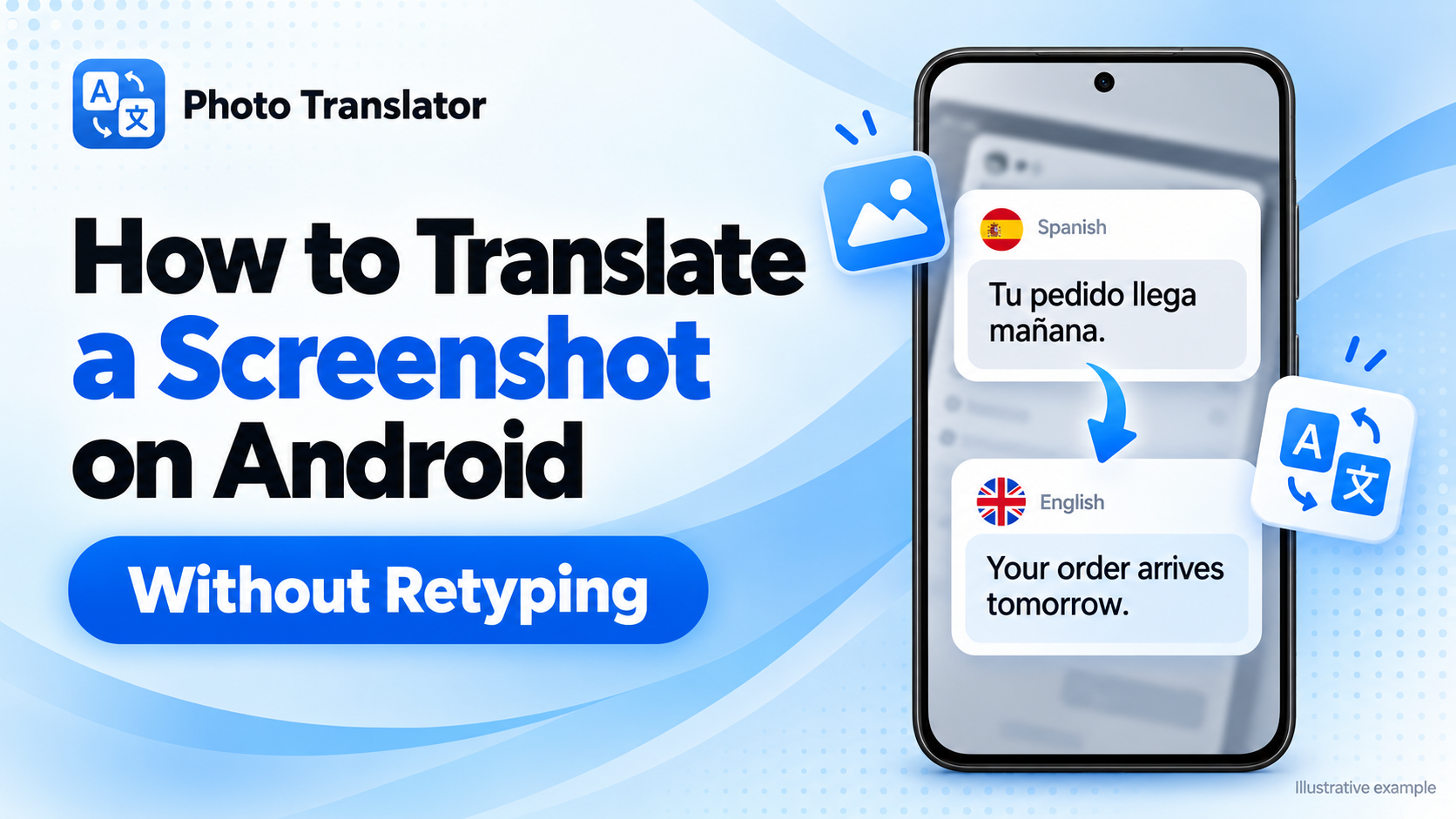
How to Translate a Screenshot on Android Without Retyping
To translate a screenshot on Android, open the saved image in Google Translate or Google Lens, then choose your target language. You can also upload it to a browser-based screenshot translator without installing another app.
Whether you need to understand an app setting, a game instruction, or a foreign-language message, these methods read the text directly from the image.
Which Method Should You Choose?
| Your starting point | Method |
| You want to upload a screenshot without installing an app | PhotoTranslator.net in your browser |
| You already use Google Translate | Import the saved image |
| Your screenshot is open in Google Photos | Google Lens |
Choose the option that fits the apps you already use. You do not need to try all three.
Translate a Screenshot in Your Android Browser
For a browser-based workflow:
- Open the Screenshot Translator in Chrome or another browser.
- Tap Choose File and select your saved screenshot.
- Choose the source language the language in the image.
- Select your target language, such as English.
- Tap Translate and review the result.
The tool supports PNG, JPG, and WebP images. After processing, you can copy the translated text or use the translated-image download option.
To translate a screenshot to English on Android, select English as the target language. You can also open the dedicated Translate Image to English tool.
Check important names, times, and numbers against the original before using the translation.
Translate a Saved Screenshot With Google Translate
If you already have Google Translate installed:
- Open Google Translate.
- Choose the source and target languages.
- Tap Camera.
- Tap All Images, or the image-selection control shown in your version.
- Select the screenshot and review the translation.
The camera section also handles saved images—you do not need another phone to photograph your screen. Google explains this workflow in its Android image translation instructions.
Translate a Screenshot With Google Lens
Google Lens is convenient when the image is already open in Google Photos.
- Open Google Photos and select your screenshot.
- Tap Google Lens, either through a visible shortcut or the More menu.
- Choose Translate when available.
- Check the target language and read the result.
The controls can vary between app versions. If you cannot find Lens, use Google Translate’s image import or the browser method instead. See Google’s Lens instructions for its current Photos workflow.
What If the Text Is Still on Your Screen?
On supported Android phones, Circle to Search can translate visible text without saving a screenshot first.
Touch and hold the Home button or navigation handle, then tap Translate when the feature appears. Availability depends on your device, and some apps restrict it. Google’s Circle to Search guide explains the feature.
For an image someone has sent you, use one of the saved-screenshot methods above.
Fix Missing or Incorrect Text
Android screenshot translation works best when the original characters are clear.
| Problem | What to try |
| Words are missing | Capture a smaller section with larger text |
| The wrong language appears | Select the source and target languages manually |
| Separate messages are mixed | Translate one complete message at a time |
| Numbers look incorrect | Compare them directly with the original screenshot |
Keep complete sentences together when cropping. A single button label or short reply may not provide enough context.
If you can reopen the original content, increase its text size before taking another screenshot. Enlarging an already blurry image cannot restore missing detail.
Frequently Asked Questions
Can I translate a screenshot on Android without downloading an app?
Yes. Open a browser-based screenshot translator, upload the image, and choose your languages.
Can I translate text that I cannot copy?
Yes. Screenshot translation uses text recognition to read visible characters inside the image, even when the original app does not offer a Copy option.
Does Tap to Translate work with screenshots?
Not directly. Google’s Tap to Translate works with copied text r
ather than images. For a screenshot, use Lens, image import, or a browser translator. Google’s explanation.
Does this work on Samsung and Pixel phones?
You can use a compatible browser or translation app on either. The location of your screenshots and the available shortcuts may differ.
Also use an Apple device? Read how to translate a screenshot on iPhone.