
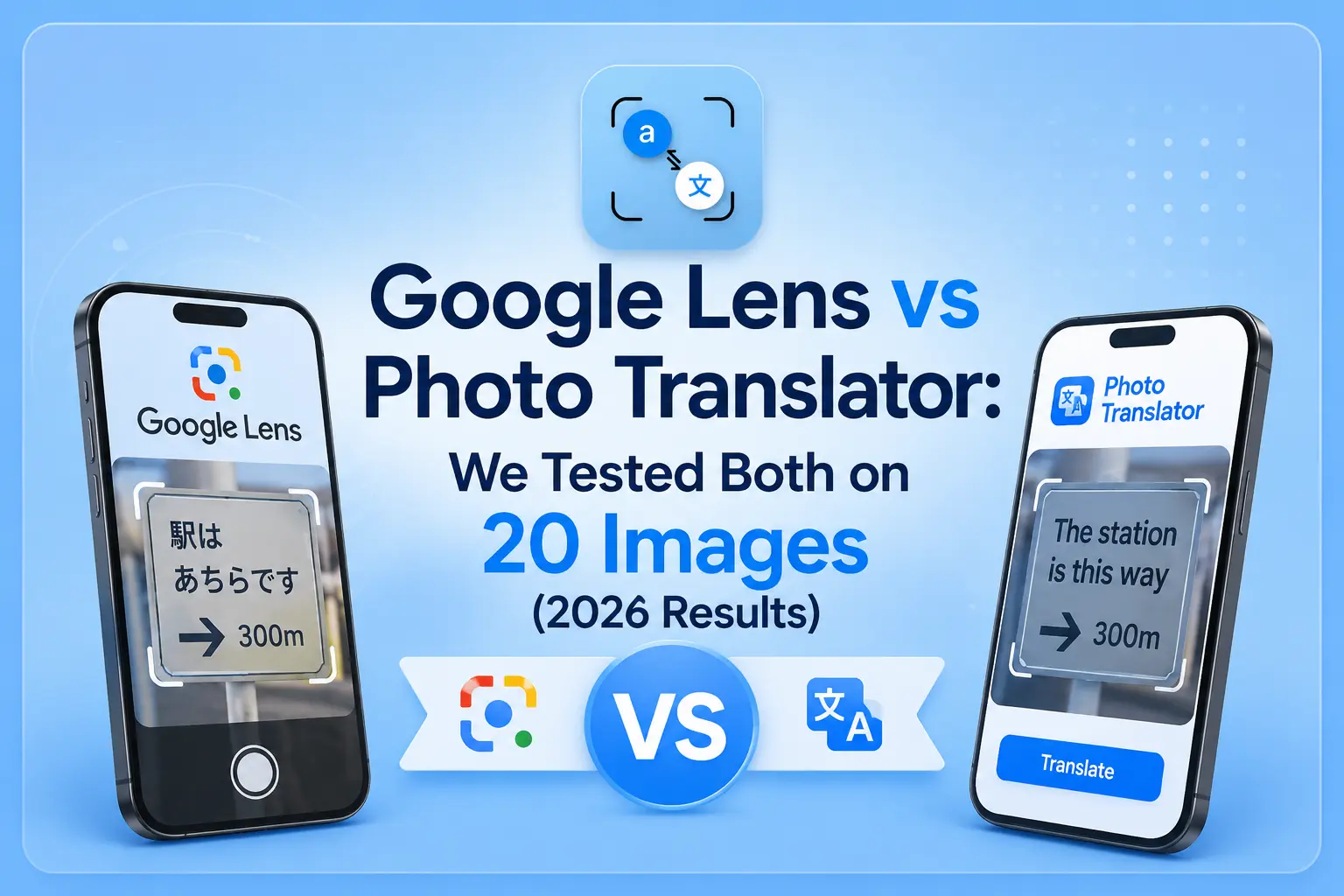
Google Lens is already on your phone. It is free, built by Google, and works in seconds. So why do millions of people still search for a way to translate a photo without it?
Because Google Lens was not built for everything. For uploaded screenshots, scanned documents, product images, and private files, a browser-based photo translator does the job faster, more accurately, and more privately.
We tested both tools on the same 20 images. Here is what we found.
How We Tested
We ran Google Lens and phototranslator.net on the same set of 20 images: Chinese restaurant menus, AliExpress clothing size charts, scanned English contracts, Arabic street signs, French handwritten notes, Japanese product labels, and screenshots of foreign-language apps. We measured text extraction accuracy, translation quality, speed, and privacy behaviour. Results below are reported without bias, including where Google Lens clearly outperforms.
What Each Tool Actually Does
Google Lens is a visual search tool built into Android and available on iOS. Point your camera at text, and it overlays a real-time translation directly on the image using augmented reality. It runs on Google's AI infrastructure and supports 100+ languages.
phototranslator.net works differently. You upload an image, a screenshot, a scanned document, a photo of a label, and it extracts the text using OCR technology, then translates it into 80+ languages. No app. No Google account. Works in any browser on any device.
Both tools translate text from images. How they do it and when each one fails is where the comparison matters.
Head-to-Head: Key Differences
| Feature | Google Lens | Photo Translator (Browser) |
| Requires app / install | Yes (Android built-in; iOS app) | No — runs in any browser |
| Google account needed | Yes | No |
| Works on desktop/laptop | Limited | Yes — any device with a browser |
| Live camera translation | Yes (AR overlay) | No |
| Upload & translate image | Yes (via Google Photos) | Yes — core feature |
| Scanned documents / PDFs | Limited accuracy | Strong — built for this |
| Editable extracted text | Copy only | Full editable text output |
| Image stored on the server | Yes — linked to your Google account | No — deleted immediately after processing |
| Offline mode | Yes (downloadable language packs) | No — requires internet |
| Languages supported | 100+ | 80+ |
| Signup required | Yes | No |
Where Google Lens Wins
Live camera translation is genuinely impressive. Point your phone at a menu in Tokyo or a road sign in Athens, and Google Lens overlays the translation on top of the original text in real time. No browser tool comes close to this experience. If you are walking through a foreign city, Google Lens is the right tool.
Offline mode matters when you travel. Before your trip, download language packs inside the Google Translate app. Google Lens then translates street signs and menus even when you have no data signal. This is one feature a browser-based tool cannot match, it requires an internet connection to run.
Broader language coverage. With 100+ languages, including several minority scripts, Google Lens edges ahead in range. For most users, the 80+ languages on the photo translator are more than sufficient, but if you regularly work with rare scripts, this gap is worth knowing.
Where a Browser-Based Photo Translator Wins
Translate a photo without downloading an app
This is the most common reason people look for an alternative. You are on a laptop, a shared computer, or an iPhone where you would rather not install another Google app. A browser-based tool opens in 2 seconds and processes your image without touching your device's storage or account.
No installation. No sign-in screen. Upload, translate, copy, done.
Your images are not stored anywhere
This is the sharpest practical difference between the two tools and the one most comparison articles skip entirely.
When you use Google Lens, your image is processed on Google's servers and the activity is logged to your Google account. Google's own App Store privacy label confirms it may collect user content, usage data, search history, and identifiers. A security vulnerability in Chrome's Lens integration was patched in 2025, but it illustrated the exposure that comes with a cloud-connected tool tied to your identity.
For everyday menu photos, this is not a concern. For a scanned contract, a medical document, a financial statement, or a client's confidential file the privacy difference is real.
Phototranslator.net processes your image in RAM and deletes it immediately. Nothing is saved to a server. Nothing is linked to an account because there is no account.
Scanned documents and screenshots
Google Lens is camera-first. It was designed around pointing a phone at something physical. When you feed it a scanned PDF screenshot, a low-contrast document image, or a screenshot of foreign-language text, accuracy drops noticeably compared to a purpose-built OCR tool.
If you regularly deal with problems, Extract Text from Screenshots on Any Device a dedicated OCR translator handles that use case more reliably. The text comes out editable and clean, ready to paste into a document or email without manual correction.
Works on any device without a Google ecosystem
Not everyone is on Android. Not everyone wants to use Google Photos. A browser-based tool works identically on an iPhone, a Windows laptop, a Chromebook, a tablet, or any device with a browser. There are no ecosystem requirements.
The Privacy Difference: What Google Does With Your Images
This is the sharpest practical difference between the two tools, and the one most comparison articles skip.
When you use Google Lens, your image is processed on Google's servers, and the activity is logged to your Google account. According to Google Lens's privacy analysis on joindeleteme.com, the tool's App Store privacy label confirms it may collect user content, usage data, search history, location, and identifiers. Users can delete their Lens history manually, but the default is retention.
For everyday menu photos, this is not a concern. For a scanned contract, medical document, financial statement, or client file, the privacy difference is real and significant.
Phototranslator.net processes your image in RAM and deletes it immediately after translation. Nothing is saved to a server. There is no account, so there is no activity log to link to your identity.
Works Everywhere Without Google's Ecosystem
Not everyone is on Android. Not everyone wants to use Google Photos. A browser-based tool works identically on an iPhone, Windows laptop, Chromebook, tablet, or any device with a browser. No ecosystem requirements, no account sharing across Google services.
Which Tool to Use: By Situation
| Your situation | Best tool |
| Walking around a foreign city, need live translation | Google Lens |
| No internet access, traveling offline | Google Lens (with pre-downloaded packs) |
| Translating a screenshot or an uploaded image | Photo Translator |
| Scanned document or image-based PDF | Photo Translator |
| On a laptop or desktop browser | Photo Translator |
| Don't want to create a Google account | Photo Translator |
| Sensitive or confidential document | Photo Translator |
| Need to copy and edit the extracted text | Photo Translator |
| Translating a restaurant menu with your phone camera | Either Google Lens is faster, or Photo Translator is more private |
We tested 7 free photo translation tools on real images so you can pick the right one for your needs in 2026.
For the restaurant menu use case, specifically if you want step-by-step guidance on getting the most accurate result from a photo, this guide to translating menus, signs, and labels from a photo covers every scenario in detail.
Italian Users: Come Usare un Traduttore di Foto Senza Google Lens
Questa sezione è per gli utenti italiani che cercano "traduttore Google Lens" o un'alternativa al browser.
Se stai cercando un modo per tradurre testo da una foto senza usare Google Lens, esiste un'alternativa gratuita che funziona direttamente nel browser senza scaricare app e senza account Google.
Come funziona phototranslator.net:
- Apri il browser sul tuo telefono o computer
- Vai su phototranslator.net
- Carica la foto che vuoi tradurre (menu, etichetta, documento, screenshot)
- Seleziona l'italiano o un'altra lingua come destinazione
- La traduzione appare in pochi secondi
Quando conviene usare Phototranslator invece di Google Lens:
- Hai una foto già salvata da tradurre (non serve la fotocamera in tempo reale)
- Sei su laptop o computer desktop
- Non vuoi usare un account Google
- Stai traducendo un documento riservato o personale
- Vuoi il testo estratto in formato modificabile per copiarlo
Quando Google Lens è meglio:
- Hai bisogno di traduzione in tempo reale con la fotocamera (AR overlay)
- Sei in viaggio e vuoi leggere cartelli o menu puntando il telefono
Which Tool to Use — By Situation
| Your situation | Best tool |
| Walking around a foreign city, need live translation | Google Lens |
| No internet access, travelling offline | Google Lens (with pre-downloaded packs) |
| Translating a screenshot or an uploaded image | Photo Translator |
| Scanned document or image-based PDF | Photo Translator |
| On a laptop or desktop browser | Photo Translator |
| Don't want to create a Google account | Photo Translator |
| Sensitive or confidential document | Photo Translator |
| Need to copy and edit the extracted text | Photo Translator |
| Translating an AliExpress or Temu product image | Photo Translator |
| Translating a restaurant menu with your phone camera | Either — Google Lens is faster, Photo Translator is more private |
For the restaurant menu use case specifically, see our guide to translating menus, signs, and labels from a photo for a step-by-step breakdown by country.
Frequently Asked Questions
Q: Is Google Lens better than a browser-based photo translator?
A: It depends on what you are doing. Google Lens is better for live camera translation and offline use. A browser-based photo translator is better for uploaded images, scanned documents, desktop use, and situations where privacy is a concern. Neither tool is universally better; they solve different problems.
Q: Can I translate an image without downloading Google Lens?
A: Yes. Open any browser on your device and go to a browser-based photo translator. Upload your image, select your target language, and get the translation in seconds: no app download, no Google account, no signup required.
Q: Does Google Lens save the photos you scan?
A: Yes. Google Lens processes images through Google's servers and logs activity to your Google account by default. According to Google Lens's App Store privacy label, the tool may collect user content, usage data, and identifiers. You can delete your Lens history in your Google account settings, but the default is that activity is recorded.
Q: What is the difference between Google Lens and Google Translate?
A: Google Translate is a text translation service that you type or paste text into, and it translates it. Google Lens is a visual tool that reads text from images and physical objects using your camera, then passes it to Google Translate for translation. The lens is the image-reading layer. Translate is the language engine underneath it.
Q: Which tool works better for scanned documents?
A: A browser-based photo translator is more reliable for scanned documents and image-based PDFs. Google Lens is optimised for live camera input, not for processing scanned or uploaded document images. For PDFs specifically, uploading a screenshot of the page to a dedicated OCR tool produces cleaner, more accurate text extraction.
Q: How do I translate text from a screenshot on an iPhone without an app?
A: Open Safari or any browser on your iPhone and go to phototranslator.net. Tap the upload area, select your screenshot from your camera roll, choose your target language, and tap translate. The whole process takes under a minute and requires no app download or account.
Q: Come tradurre una foto senza Google Lens? (Italian)
A: Apri il browser del tuo telefono o computer e vai su phototranslator.net. Carica la foto, seleziona la lingua di destinazione e ottieni la traduzione in pochi secondi. Nessuna app da scaricare, nessun account Google richiesto. Funziona su qualsiasi dispositivo con un browser.