
iPhone पर स्क्रीनशॉट का अनुवाद करने के लिए, इसे Photos में खोलें, Live Text का उपयोग करके टेक्स्ट चुनें, और जब उपलब्ध हो तो Translate पर टैप करें। आप Safari में किसी ऑनलाइन ट्रांसलेटर पर स्क्रीनशॉट अपलोड कर सकते हैं या इसे Google Translate में आयात कर सकते हैं। सबसे अच्छा तरीका आपकी भाषा, डिवाइस और आपके द्वारा सहेजे जाने वाले परिणाम पर निर्भर करता है।
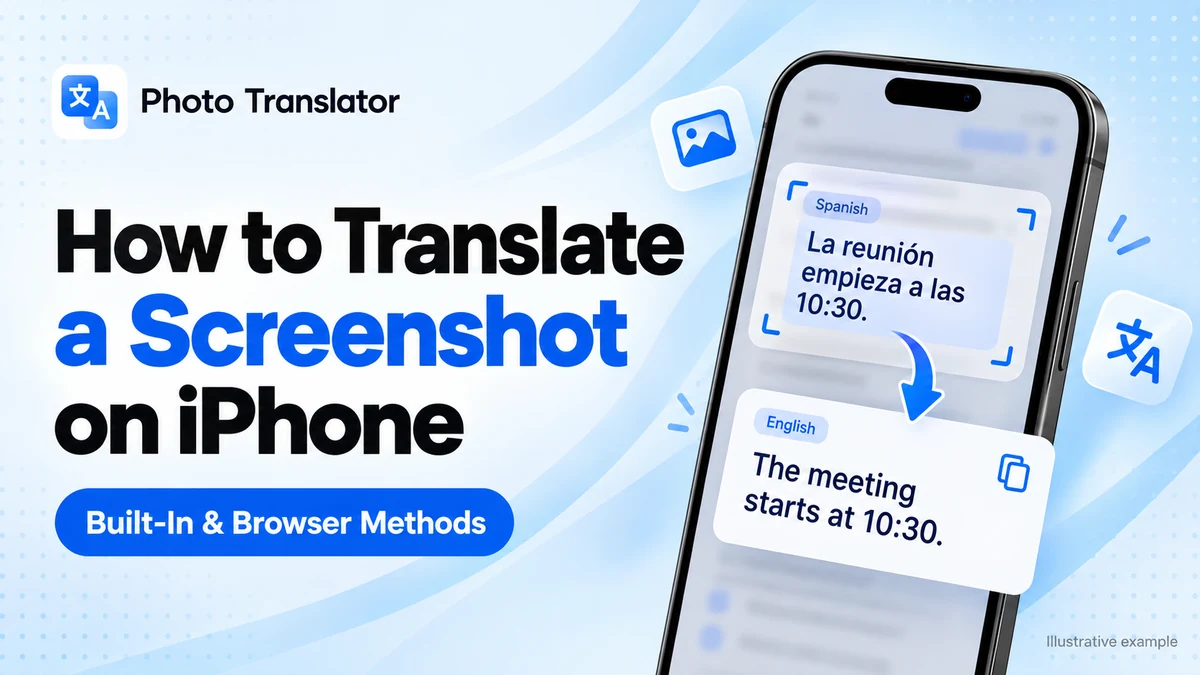
अनुवाद वर्कफ़्लो दिखाने वाला एक उदाहरण। यह किसी ऐप का स्क्रीनशॉट या रिकॉर्ड किया गया अनुवाद परिणाम नहीं है।
और नहीं
एक स्क्रीनशॉट में ऐसी जानकारी हो सकती है जिसकी आपको तुरंत आवश्यकता हो: डिलीवरी निर्देश, ग्राहक का संदेश, एक अपरिचित ऐप सेटिंग, या किसी अन्य भाषा में बुकिंग की पुष्टि।
मुश्किल यह है कि ये शब्द एक छवि का हिस्सा हैं। आप इन्हें टैप, चयन या सामान्य पाठ की तरह कॉपी नहीं कर सकते।
Screenshot translation solves this in two stages. First, text recognition reads the characters in the image. Then a translation system converts the recognized words into your chosen language. You can complete both stages on your iPhone without manually typing the message.
यह मार्गदर्शिका तीन व्यावहारिक तरीकों की व्याख्या करती है, उनके बीच चयन कैसे करें, और जब परिणाम गलत लगे तो क्या जाँचना चाहिए।
आपको कौन सा स्क्रीनशॉट अनुवाद विधि का उपयोग करना चाहिए?
अपने कार्य के लिए उपयुक्त विधि से शुरुआत करें।
| आपको क्या चाहिए | Method to try | What to check |
| Translate a few words already saved in Photos | एप्पल लाइव टेक्स्ट | Device, language, and regional availability |
| बिना कोई दूसरा ऐप इंस्टॉल किए अपलोड किए गए स्क्रीनशॉट का अनुवाद करें | PhotoTranslator.net in Safari | Supported image format and language options |
| आप पहले से ही उपयोग कर रहे ऐप का उपयोग करके एक सहेजी गई छवि का अनुवाद करें | Google Translate | स्रोत भाषा और छवि की स्पष्टता |
| Copy the translated wording into Notes or a message | A method offering text copying | नाम, संख्याएँ और वाक्य क्रम |
| Save an image containing the translation | A tool offering translated-image downloads | Readability and the downloaded result |
Apple’s built-in option is convenient for a quick selection. A browser workflow is useful when you want to upload an image and work with the resulting translation. Google Translate provides another route for saved images.
कोई भी विधि हर स्क्रीनशॉट को पूरी तरह से सही नहीं समझ पाएगी। एक मानक फ़ॉन्ट में लिखा स्पष्ट वाक्य छोटे गेम संवाद, सजावटी अक्षरों या संपीड़ित चैट छवि की तुलना में पहचानने में आसान होता है।
अनुवाद करने से पहले अपना स्क्रीनशॉट तैयार करें
You do not need special editing software. A few small adjustments can make the text easier to read.
वास्तव में आपको जिन जानकारियों की ज़रूरत है, उन्हें ही कैप्चर करें।
On an iPhone with Face ID, press and release the side button and volume-up button together. On models with a Home button, use the Home button together with the side or top button.
कैप्चर को सहेजें ताकि जरूरत पड़ने पर आप इसे फिर से चुन सकें। Apple अपनी iPhone स्क्रीनशॉट गाइड में नियंत्रणों और सहेजने के विकल्पों का दस्तावेजीकरण करता है।
If the screenshot was sent to you, save the original image when possible. Repeated screenshots of screenshots can make small letters harder to distinguish.
Keep useful context
Include the complete sentence and any nearby heading that explains it.
For example, “Pending” could describe a payment, an order, or an approval request. A screenshot containing the heading and status gives you more information than the status word alone.
Remove unrelated personal details
Before uploading a screenshot, crop out information the translator does not need, such as a phone number, account identifier, or unrelated conversation.
Keep a separate copy if you want to preserve the original.
Method 1: Translate Screenshot Text With Apple Live Text
Live Text lets you interact with recognized text inside an image. When translation is available, you can translate a selection directly from Photos.
- Open Photos and select your screenshot.
- Tap the Detect Text icon when it appears.
- Touch and hold a recognized word.
- Adjust the selection handles to include the text you need.
- Tap Translate in the available actions.
You may need to move through the selection menu to find the action.
If Live Text is disabled, check Settings → General → Language & Region → Live Text. Availability varies by language and region, and the controls can differ between iOS versions. See Apple’s Live Text instructions.
This method suits a short passage you want to understand while viewing the original screenshot. If recognition or translation is unavailable, try an image-upload workflow instead.
Method 2: Translate a Screenshot in Safari With PhotoTranslator.net
A browser-based screenshot translator is useful when you want to select a saved image, choose the languages, and review the translation in one place.
You do not need to install an additional app to use this method.
Step 1: Open the screenshot translator
Launch Safari and visit the Screenshot Translator.
Keep the original screenshot accessible in Photos or Files so you can compare it with the result.
Step 2: Choose your saved screenshot
Tap Choose File and select the image through the available file or photo picker.
The tool lists PNG, JPG, and WebP as supported formats. If your file is a PDF or another unsupported format, create an image of the relevant section or convert it to a supported format before uploading.
For a long document, use smaller captures containing readable paragraphs rather than one image with extremely small text.
Step 3: Select the source and target languages
The source language is the language written in the screenshot. The target language is the language you want to read.
If you know the source language, select it carefully. Similar-looking characters and short phrases can make identification difficult.
For an English result, you can also use the dedicated Translate Image to English page.
Step 4: Translate and review
Tap Translate, then compare the output with the original image.
Pay particular attention to:
- Names and usernames
- Dates and appointment times
- Prices and currency symbols
- Addresses and order numbers
- Words that change an instruction, such as “not” or “before”
A translation can sound fluent while still containing an incorrectly recognized number.
Step 5: Copy or download the result
The screenshot tool provides options to copy the translated text or download a translated image. Choose the output that suits your task, and review the saved result before sharing it.
For example, copied text is useful when adding instructions to Notes. A translated image may be more useful when you want to keep the surrounding visual context.
The features described here are listed on the current tool page; the appearance and readability of an individual result depend on the uploaded image.
Method 3: Translate a Saved Screenshot With Google Translate
Google Translate can work with an image already stored on your iPhone.
- Open the Google Translate app.
- Choose the source and target languages.
- Tap Camera.
- Open the gallery option and select your saved screenshot.
- Review the translated content and use the available text actions where needed.
Google’s official image translation instructions explain the gallery workflow and actions such as copying or listening to translated text.
This is useful if you already use the app and want to import an existing image. You do not need to photograph your iPhone screen with another device.
Google also notes that small, unclear, or stylized text can affect translation accuracy. If a sentence is missing or distorted, check the image before assuming the translation system misunderstood it.
How to Get a More Useful Translation
The best improvement is often a better input image.
Use the original capture
Upload the screenshot you saved directly from your iPhone when possible.
An image forwarded through several services may have been resized or compressed. If someone else captured it, ask for the original file when the text is difficult to read.
Crop around a complete text block
Remove space and unrelated panels, but keep the words that belong together.
A crop containing a full instruction, its heading, and its date is usually more useful than a crop containing three disconnected words.
Keep complete sentences and relevant details together. Cropping removes clutter but cannot recover detail missing from the original image.
Make the text larger before capturing it
If you control the original app or webpage, increase the text size or zoom before taking another screenshot.
Enlarging an already blurry image makes the blur larger too. A new capture from the original content is usually a better starting point.
Separate different languages
A screenshot may contain an English interface, a Japanese message, and a product name in another script.
Try translating the relevant text blocks separately if the output mixes them together. Select the appropriate source language for each block.
Check whether the error began with recognition
There are two different problems:
Text recognition error: The system reads the image incorrectly. For example, 10:30 becomes 10:80.
Translation error: The original text is recognized correctly, but its meaning is interpreted poorly.
For recognition problems, improve the image or adjust the crop. For meaning problems, include more surrounding text and verify the source language.
If your immediate goal is to copy the original wording before translating it, see our guide to extracting text from screenshots.
Why Is Screenshot Translation Not Working on My iPhone?
Use the symptom to choose your next step.
| Problem | What to check | What to try |
| You cannot select text in Photos | Recognition and Live Text availability | Check settings or try an image translator |
| The Translate action is missing | Available actions and language support | Check the selection menu or use another method |
| Some lines are skipped | Text size, layout, and cropping | Capture a smaller section with readable text |
| The translation uses the wrong language | Source and target settings | Select both languages manually |
| Numbers or names look wrong | Recognized characters | Compare directly with the original |
| A browser upload fails | File format and connection | Use PNG, JPG, or WebP and retry |
| A long screenshot gives confusing output | Reading order and dense content | Split it at natural section boundaries |
When dividing a screenshot, keep one complete message or paragraph in each image. Breaking a sentence across two uploads can remove the context needed to interpret it.
Can You Translate Messages, App Screens, and Game Text?
Yes, provided the screenshot contains readable text and your chosen method supports the language.
For a chat screenshot, keep enough of the conversation to explain the message. Short expressions, jokes, and abbreviations may make little sense when translated alone.
For an app screen, include the heading and the control you want to understand. A button labeled “Cancel” could dismiss a dialog or cancel an order; the surrounding screen matters.
For a game screenshot, capture the full dialogue box, quest instruction, or menu. Decorative fonts and character names may require additional checking.
Screenshot translation reads the captured image. It does not automatically translate every screen you open afterward, and it cannot read content outside the capture.
What Happens When You Upload a Screenshot?
An online translator processes the image you submit. This means the screenshot's contents depend on the service you choose.
PhotoTranslator.net’s Privacy Policy states that it does not retain uploaded images or translation results after processing. Read the policy before uploading confidential material.
You can also reduce what you share by cropping out unrelated details. For example, translating a delivery instruction should not require including your entire account screen.
Frequently Asked Questions
Can I translate a screenshot on iPhone without downloading an app?
Yes. Use Live Text when available, or open a browser-based screenshot translator in Safari and upload a supported image.
How do I translate a screenshot into English?
Choose English as the target language in your translation tool. Select the source language, upload or open the screenshot, and review the English result.
Can I translate text in a screenshot that I cannot copy?
Yes. Image translation tools use text recognition to read visible characters. The original app does not need to offer a copy button for text already captured in an image.
Will translation change my original screenshot?
Selecting and translating text does not itself replace the wording in the original image. If a tool offers a translated-image download, save that output separately.
Can I translate a long screenshot?
You can try, but dense or very small text may be difficult to recognize. Divide the image into readable sections while keeping complete paragraphs together.
Can screenshot translation work without internet?
It depends on the method and available offline language support. PhotoTranslator.net uses an online workflow. Google documents offline camera translation with downloaded languages; prepare those languages before relying on it without a connection.
Why does the translation sound strange even though the words are readable?
The screenshot may contain slang, incomplete sentences, specialized terms, or missing context. Include the surrounding sentence and check that the source language is correct.
Which method should I try first?
Try Live Text for a quick selection in Photos. Use a browser translator when you want to upload a screenshot and copy or download the result. If the first method struggles, improve the image and try another route.
Ready to read your screenshot in another language? Open the Screenshot Translator, choose your image and languages, and compare the translation with the original before using it.