
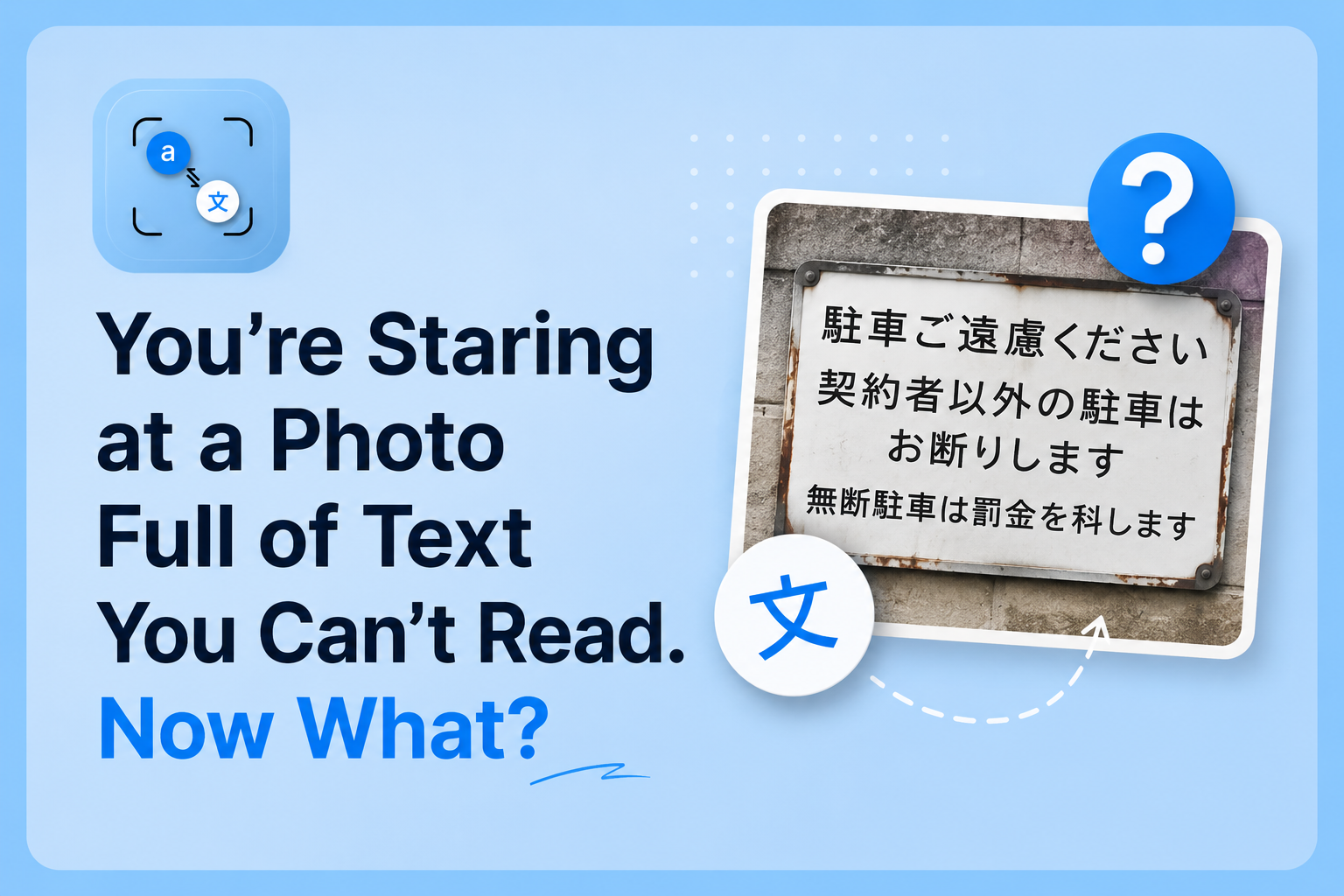
You photographed a restaurant menu in Tokyo. A street sign in Lisbon. A handwritten note left by your Airbnb host in Istanbul. Or maybe a scanned contract from a supplier in Berlin, and your PDF reader won't let you copy a single character.
The text is right there. You just can't read it.
This guide covers exactly what to do which method works for which situation, where tools tend to fail, and what actually gets you a clean translation from a photo in under a minute.
The Fastest Way to Translate Text from a Photo (Step by Step)
The most reliable browser-based method no installation, no account works like this:
-
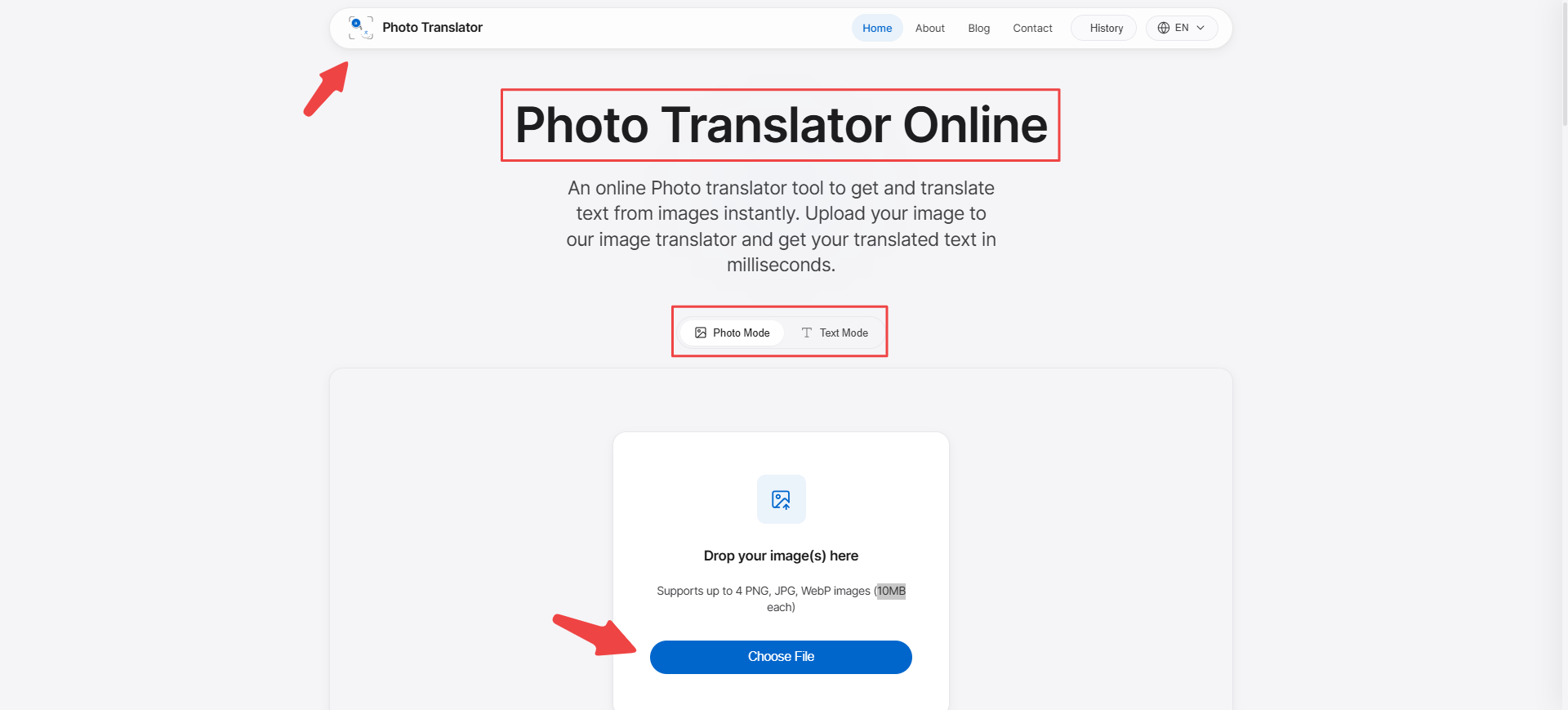
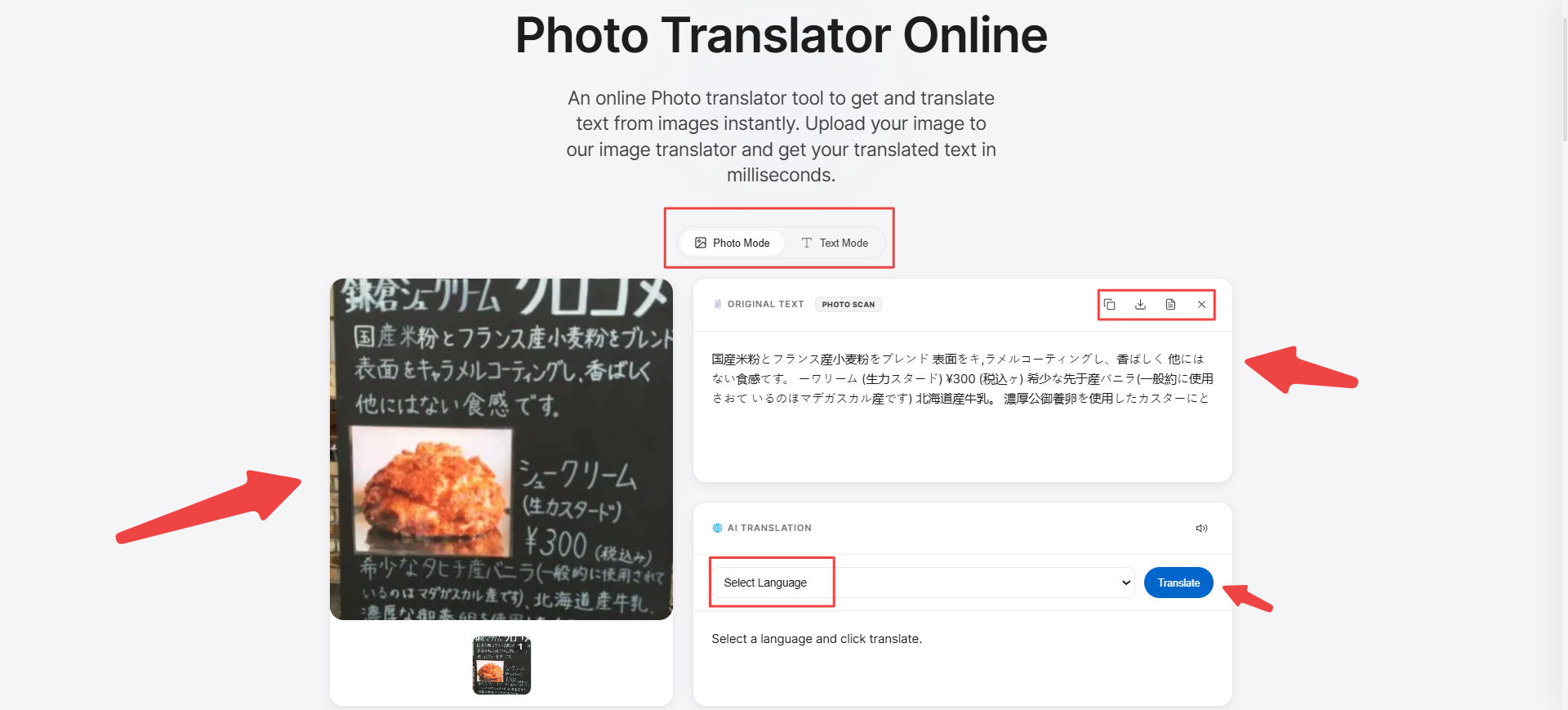
Open Phototranslator.net in any browser on your phone or Laptop.
-
Upload your photo drag it in, paste a screenshot, or tap the upload button on mobile. JPG, PNG, and WEBP all work.
-
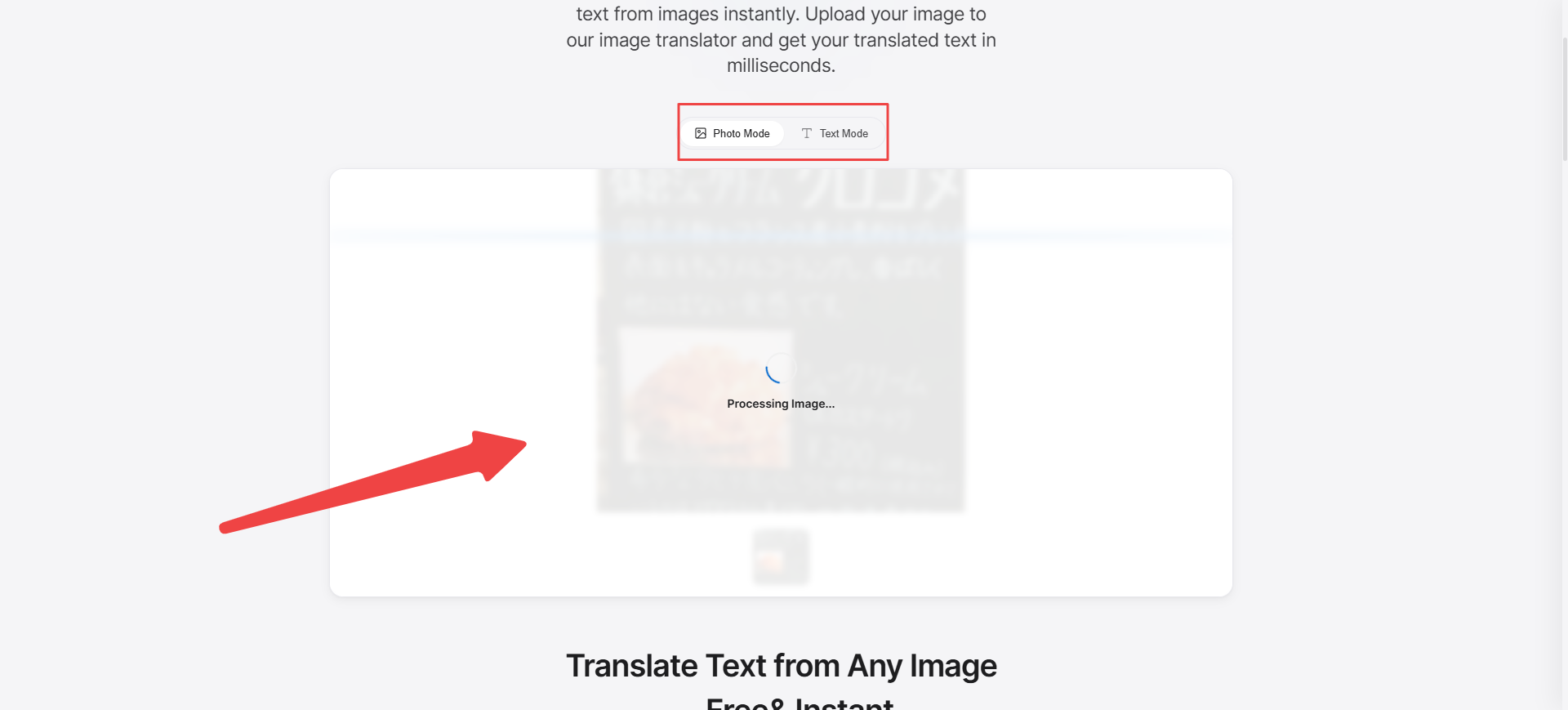
Select your target language from the dropdown. The tool detects the source language automatically.
-
Hit Translate. The extracted text and its translation appear side by side, usually within a few seconds.
That's the full workflow for the majority of cases. No email, no subscription wall, no watermark on the result.
When Does Photo Translation Actually Work Well?
Not every image is equal. Understanding where accuracy holds up (and where it doesn't) saves you from trusting a translation you shouldn't.
High accuracy situations:
-
Printed text with good contrast against a plain background menus, signs, labels, receipts
-
Scanned documents with clean formatting
-
Digital PDFs saved as images
Lower accuracy situations:
-
Handwriting especially cursive or informal scripts
-
Photos taken at an angle or in poor lighting
-
Decorative fonts, overlapping text, or logos with text inside them
-
Very small text captured from a distance
According to a 2026 OCR analysis, modern AI-based systems achieve an average character accuracy rate of around 98.5% on printed text under standard conditions. That figure drops significantly with degraded inputs. The honest takeaway: for a clean photo of a menu or sign, you'll get a reliable result. For a photo of your grandmother's handwritten letter taken at night, retake the photo in better light first.
The Situations Most People Actually Use This For!
Traveling: Menus, Signs, and Things You Didn't Expect to Need Translated
A 2025 Preply survey of 1,526 American travelers found that 35% admit to pointing at menu items rather than attempting to pronounce foreign words and the same study found that 45% of Americans say they'd travel more internationally if they could handle the language barrier more easily.
A photo translator turns that situation around in about 30 seconds. Photograph the menu, translate it, order confidently. Same with hotel check-in notices, transit signs, museum labels, or prescription instructions from a foreign pharmacy.
The use case that surprises people most: translating text messages or screenshots from messaging apps in another language. If a local contact in another country sends you directions entirely in Arabic script or Thai characters, screenshot it and run it through the same process.
Students: Textbooks, Research Papers, and Foreign Source Material
Academic research frequently turns up sources in languages other than your own. Downloading a German paper, a Japanese study, or a Spanish thesis and finding that the PDF is image-based is a genuine Hurdle.
Uploading a page screenshot translates the full passage without needing to retype anything. For students working with primary sources, archival scans, or multilingual reading lists, this workflow is faster than any other option without a dedicated translation account.
One practical tip: screenshot one page at a time rather than uploading a full multi-page scan. Smaller, higher-resolution images consistently produce more accurate results than compressed multi-page files. This is covered in more depth in our guide to translating scanned academic documents, and you have to submit 3 images once and download them when the data is extracted and translated into 80+ languages.
Professionals: Invoices, Contracts, and Business Cards
Foreign invoices are a specific headache. They often arrive as image attachments, which means copy-paste translation tools are useless, as the text isn't selectable. Uploading the invoice image extracts line items, supplier details, and totals in the language in which the document was created.
What Actually Separates Different Photo Translation Tools?
Since several tools exist for this, it's worth understanding where they differ beyond just branding.
|
What varies |
Why it matters |
|
Language coverage |
Some tools cap at 50–70 languages. For less common languages (Urdu, Amharic, Bengali), this matters. |
|
Handwriting support |
Most tools are trained on printed text. True handwriting recognition requires a different model architecture. |
|
Layout preservation |
Does the translated text match the original layout, or does it come back as a block of plain text? |
|
File format support |
WEBP, HEIC (iPhone format), and PDF-as-image are often unsupported by basic tools. |
|
Account requirement |
Many tools that appear free require a sign-up. This is a friction point for one-off use cases. |
Google Translate handles image translation via its mobile app, it's widely used, supports 130+ languages, and works well for common languages in good lighting. Its limitation is that it works primarily through the camera interface rather than file uploads, which makes it less useful for translating screenshots or saved images on a desktop. Google's documentation on Translate's image feature covers the supported formats.
Microsoft Translator offers similar camera-based translation and integrates tightly with Office products, useful for professionals already in that ecosystem. Microsoft's translation documentation outlines the document translation API for teams building this into their own workflows.
The gap most browser-based tools fill is the upload-and-translate workflow that doesn't require an app, an account, or a specific mobile device.
Why Your Photo Didn't Translate Cleanly (And How to Fix It)
The most common reasons a translation comes back wrong or incomplete:
Problem: Only half the text was translated
Most likely cause: the image has mixed-direction text (e.g., Arabic right-to-left alongside English left-to-right), or a second language block that the auto-detect didn't catch. Crop the image to isolate one text block and run it again.
Problem: The translation is garbled or nonsensical
Most likely cause: low image resolution or poor contrast. Retake the photo with the camera closer, or increase brightness and contrast before uploading. According to OCR research from LlamaIndex, scanning or photographing documents at a minimum of 300 DPI significantly improves recognition accuracy on printed text.
Problem: Handwritten text came out as random characters
Handwriting recognition is genuinely harder. Cursive is particularly difficult. If the handwriting is clear block letters, it'll usually work. Flowing cursive in an unusual script is still a challenge for most consumer-level tools. If accuracy matters and the text is handwritten, human translation remains the reliable option.
Problem: The tool couldn't find any text in the image
The image is likely decorative or the text resolution is below the detection threshold. Zoom in before photographing, or use a screen-capture crop to get a tighter, higher-resolution version of the text area.
Frequently Asked Questions
Q: Can I translate a photo without downloading an app?
A: Yes. Browser-based tools, including Phototranslator.net, work on any device with a browser. There's nothing to install.
Q: How accurate is photo translation compared to typing text manually?
A: For clean, printed text in good lighting, accuracy is comparable to tools like Google Lens both methods feed the same underlying translation engine. The only difference is how the text gets there: you typed it, the OCR extracted it, or the camera read it live. For a deeper breakdown of how these approaches compare in real use, see our Google Lens vs Photo Translator guide. Degraded images introduce errors at the extraction stage, before translation even begins.
Q: Can I translate a screenshot?
A: Yes. Screenshots are typically high-resolution and consistent, which makes them among the easiest inputs for photo translation tools. Paste or upload the screenshot directly.
Q: What's the best language to translate from a photo into?
A: The tool doesn't restrict the target language. You select whatever language you need. The more common the language pair, the more translation model data exists to support it. English, Spanish, French, German, Chinese, Japanese, Arabic, and Hindi are all well-supported.
Q: Does the tool store my images?
A: This varies by tool. Check the privacy policy of any service you use. For sensitive documents, contracts, medical records, and financial paperwork, verify the data retention policy before uploading.
Q: Can I translate handwriting from a photo?
A: Clear, printed handwriting (block capitals, for example) translates reasonably well. Flowing cursive, especially in non-Latin scripts, is still inconsistent across most tools. For handwritten content, see our guide specifically covering handwritten text translation.
Q: What file formats are supported?
A: Most tools support JPG, PNG, and WEBP. HEIC (the default iPhone photo format) and PDF pages saved as images are supported on some platforms but not all. Convert to JPG first if you run into format errors.