
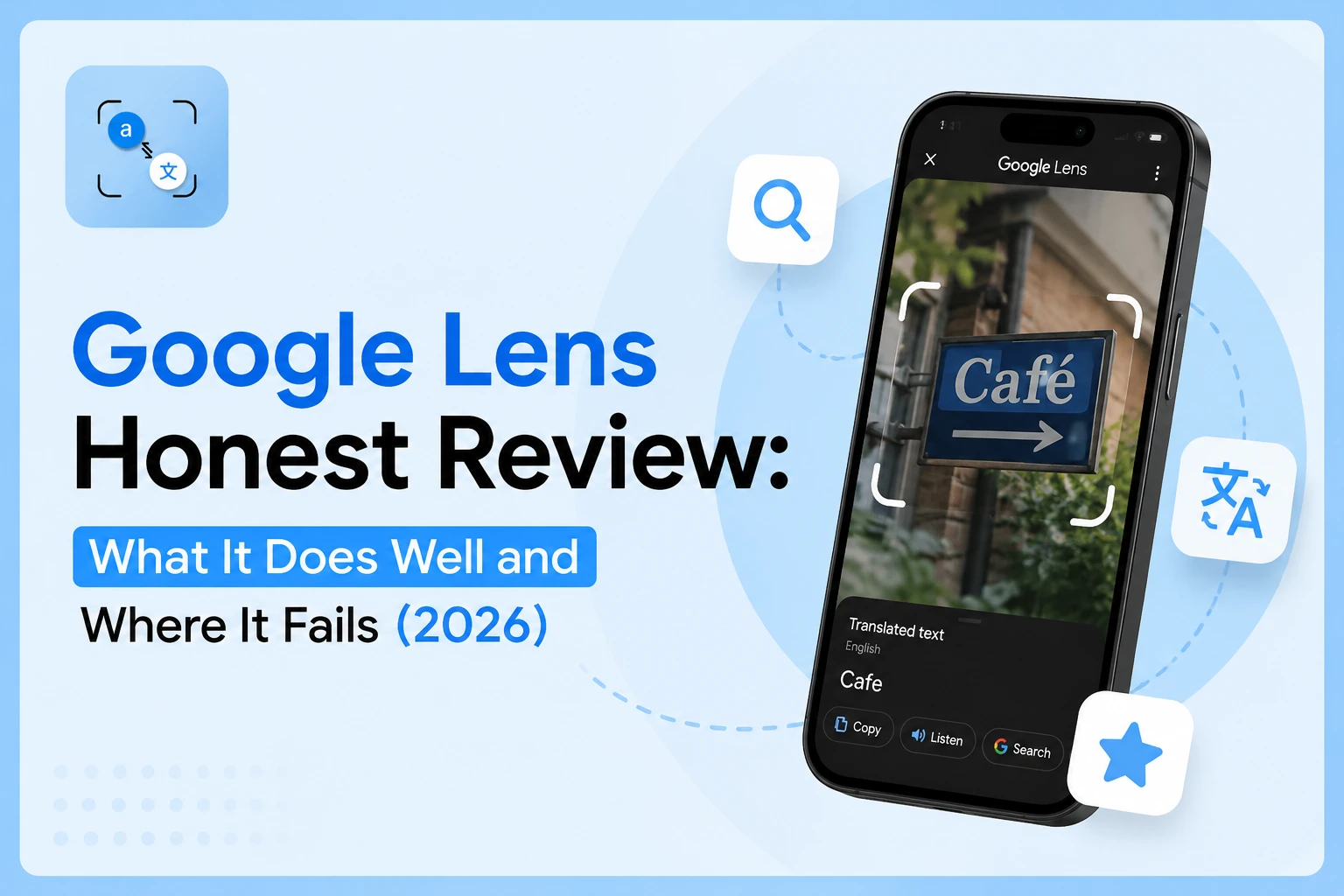
Google Lens किसी भी स्मार्टफ़ोन पर सबसे सक्षम मुफ़्त टूल में से एक है, लेकिन इसकी वास्तविक सीमाएँ हैं जिनमें अधिकांश समीक्षाएँ उल्लेख नहीं करती हैं। यहाँ बताया गया है कि यह वास्तव में अच्छा करता है, जहां यह कम हो जाता है, और जब आपको इसके बजाय किसी और चीज़ का उपयोग करना चाहिए।
Google लेंस वास्तव में क्या अच्छा करता है
रीयल टाइम साइन और मेनू अनुवाद
यात्रा के लिए Google Lens कैसे काम करता है? अपने कैमरे को विदेशी टेक्स्ट पर इंगित करें, और यह वास्तविक समय में अनुवाद को ओवरले करता है - कोई टैप नहीं, कोई अपलोड नहीं, कोई प्रतीक्षा नहीं। यह कैमरे को मूव करते समय 100+ भाषाओं और AR ओवरले अपडेट को सपोर्ट करता है। उन यात्रियों के लिए जिन्हें मौके पर ही रेस्टोरेंट मेनू या स्ट्रीट साइन पढ़ना पड़ता है, यह अभी भी सबसे तेज़ मुफ़्त तरीका उपलब्ध है। Google Lens has over 1.5 billion active users, which reflects how useful it is for exactly this kind of everyday, in-person task.
वस्तु और उत्पाद की पहचान
किसी भी उत्पाद की तस्वीर लें और Google Lens 45 बिलियन से अधिक उत्पादों के डेटाबेस से खींचते हुए, ब्रांड, अनुमानित मूल्य और इसे कहां खरीदना है। यह 92% से अधिक सटीकता वाले पौधों की पहचान करता है, जानवरों की प्रजातियों को पहचानता है, और स्थलों की पहचान करता है। खरीदारी, प्रकृति और यात्रा की पहचान के लिए, यह विज़ुअल सर्च टूल वास्तव में प्रभावशाली है और अच्छी तरह से चित्रित विषयों पर लगातार सटीक है।
रियल - वर्ल्ड फ़ोटो से टेक्स्ट एक्सट्रैक्शन
किसी प्रिंटेड डॉक्यूमेंट, व्हाइटबोर्ड या बिज़नेस कार्ड पर Google Lens की ओर इशारा करें, अपनी पसंद का टेक्स्ट चुनें और उसे सीधे कॉपी करें। यह Google Lens टेक्स्ट एक्सट्रैक्शन फ़ीचर अच्छी रोशनी में साफ़ - साफ़ प्रिंटेड टेक्स्ट पर काम करता है और इसे ज़्यादातर एंड्रॉइड कैमरों में बनाया गया है, जिन्हें डाउनलोड करने की ज़रूरत नहीं है। त्वरित, आकस्मिक टेक्स्ट व्यक्तिगत रूप से पकड़ने के लिए, यह बिना घर्षण के काम को संभालता है।
जहां Google लेंस "ईमानदार हिस्सा" को छोटा करता है
इसके लिए लगभग हर चीज़ के लिए इंटरनेट की आवश्यकता होती है
क्या Google लेंस इंटरनेट के बिना काम करता है? नहीं, और यह सबसे महत्वपूर्ण व्यावहारिक सीमाओं में से एक है। अनुवाद, टेक्स्ट एक्सट्रैक्शन, ऑब्जेक्ट रिकग्निशन इन सभी के लिए एक सक्रिय कनेक्शन की आवश्यकता होती है। हवाई जहाज़ पर, तहखाने में, ग्रामीण क्षेत्र में, या डेटा रोमिंग के बिना अंतरराष्ट्रीय स्तर पर यात्रा करते हुए, Google Lens अनिवार्य रूप से अनुपयोगी है। Apple का लाइव टेक्स्ट एकमात्र प्रमुख विकल्प है जो टेक्स्ट निष्कर्षण के लिए पूरी तरह से ऑफ़लाइन काम करता है।
कम क्वालिटी या अपलोड की गई इमेज पर सटीकता गिरती है
Google Lens को लाइव कैमरा इनपुट के लिए डिज़ाइन किया गया था। जब आप उसे स्क्रीनशॉट, स्कैन किए गए डॉक्यूमेंट या खराब रोशनी में ली गई फ़ोटो खिलाते हैं, तो नतीजे काफ़ी कमज़ोर होते हैं। Google लेंस एक अनुमानित पैटर्न में धुंधली छवियों पर विफल रहता है; ओसीआर परत जो एक लाइव, अच्छी तरह से प्रकाशित दृश्य पर आसानी से काम करती है, एक स्थिर अपलोड में एक ही सामग्री के साथ संघर्ष करती है। लिखावट की पहचान मौजूद है, लेकिन यह असंगत है, खासकर शाब्दिक पाठ या गैर - लैटिन लिपियों पर। One recurring user complaint across review data confirms this directly: the tool "requires a clear image to give exact results."
निजता आपकी छवियाँ Google के सर्वर पर जाती हैं
Google Lens द्वारा प्रोसेस की गई हर फ़ोटो Google के क्लाउड इंफ़्रास्ट्रक्चर को भेजी जाती है। Google की गोपनीयता नीति में कहा गया है कि डेटा का उपयोग "सेवाओं को बेहतर बनाने" के लिए किया जा सकता है, अस्पष्ट शब्द जो कंपनी को आपके छवि डेटा को संभालने के तरीके के बारे में व्यापक अक्षांश देता है। व्यक्तिगत दस्तावेज़ों, अनुबंधों, चिकित्सा रिकॉर्ड और वित्तीय विवरणों के लिए, यह एक वास्तविक चिंता का विषय है। जिन यूज़र को ऑफ़लाइन, अकाउंट - फ्री इमेज प्रोसेसिंग की ज़रूरत होती है, उन्हें पूरी तरह से एक अलग टूल की ज़रूरत होती है। You can review and delete your Lens activity history at myactivity.google.com.
दस्तावेज़ अनुवाद कार्यप्रवाह के लिए निर्मित नहीं है
Google Lens क्विक लाइव रीड के लिए बेहतरीन है। यह सेव की गई फ़ोटो अपलोड करने या PDF स्क्रीनशॉट का अनुवाद करने के लिए नहीं बनाया गया है। अनुवादित टेक्स्ट को सहेजने, निर्यात करने या व्यवस्थित करने का कोई तरीका नहीं है जिसे आप इसे मैन्युअल रूप से कॉपी करते हैं या इसे खो देते हैं। कोई बैच प्रोसेसिंग नहीं है, कोई संपादन योग्य टेक्स्ट आउटपुट नहीं है, और कोई दस्तावेज़ - स्तरीय वर्कफ़्लो नहीं है। जिन लोगों को सेव की गई फ़ोटो या स्कैन किए गए डॉक्यूमेंट का अनुवाद करने और नतीजे के साथ काम करने की ज़रूरत है, उनके लिए Google Lens अपने हल से ज़्यादा घर्षण पैदा करता है।
Google लेंस बनाम अन्य अनुवाद उपकरण — त्वरित तुलना
अधिक »
| फ़ीचर | Google Lens | Apple Live Text | phototranslator.net |
| ऑफ़लाइन काम करता है | नहीं | हाँ | नहीं |
| ऐप/अकाउंट की ज़रूरत है | ऐप की ज़रूरत है | बिल्ट - इन आईओएस (iOS) | कोई अकाउंट नहीं है |
| अपलोड की गई फ़ोटो का अनुवाद करता है | सीमित | नहीं | हाँ |
| टेक्स्ट एक्सपोर्ट / सेव करता है | नहीं | नहीं | हाँ |
| के लिए सबसे अच्छा | लाइव कैमरा, यात्रा | झटपट iPhone पकड़ में आ गया | अपलोड करें + अनुवाद करें |
प्रत्येक टूल एक ही वास्तविक छवियों, मेनू, आकार चार्ट और स्कैन किए गए दस्तावेज़ों पर कैसे प्रदर्शन करता है, इसके गहन विवरण के लिए, देखें कि Google Lens प्रत्यक्ष साइड - बाय - साइड परीक्षण में कैसे तुलना करता है।
अगर आपको सेव की गई फ़ोटो अपलोड करनी है और उसका साफ़ - सुथरा, अनुवाद योग्य टेक्स्ट पाना है, तो ब्राउज़र - आधारित फ़ोटो अनुवाद ऐप या अकाउंट की ज़रूरत के बिना उस वर्कफ़्लो को संभालता है। यह और विस्तार से समझने के लिए कि यह कैसे काम करता है, देखें कि Google Lens Android और iPhone दोनों पर कैसे काम करता है। यह आसान और इस्तेमाल में आसान है। मैंने पिछले ब्लॉग पोस्ट में इस बारे में विस्तार से बताया है
Google लेंस का उपयोग किसे करना चाहिए और किसे नहीं करना चाहिए
Google Lens का उपयोग करें यदि:
- आप यात्रा कर रहे हैं और आपको वास्तविक समय में अपने कैमरे के माध्यम से लाइव टेक्स्ट पढ़ने की आवश्यकता है
- आप मौके पर ही किसी प्रोडक्ट, प्लांट या लैंडमार्क की पहचान करना चाहते हैं
- आप एंड्रॉइड पर हैं और एक वास्तविक दुनिया, अच्छी तरह से प्रकाशित तस्वीर से एक त्वरित टेक्स्ट कॉपी की आवश्यकता है
Google Lens पर भरोसा न करें अगर:
- आपको सेव की गई फ़ोटो, स्क्रीनशॉट या स्कैन किए गए डॉक्यूमेंट का अनुवाद करना होगा
- आप संवेदनशील डॉक्यूमेंट और निजता से जुड़े मामलों को प्रोसेस कर रहे हैं
- आपको इंटरनेट कनेक्शन के बिना काम करना होगा
- अनुवाद के बाद आपको अनुवादित टेक्स्ट को एक्सपोर्ट, सेव या एडिट करना होगा
अधिक »
अक्सर पूछे जाने वाले सवाल
प्रश्न: क्या फ़ोटो से टेक्स्ट का अनुवाद करने के लिए Google Lens सटीक है?
उत्तर: स्पष्ट, अच्छी तरह से प्रकाशित मुद्रित पाठ के लिए, Google Lens अनुवाद सटीकता मजबूत है, विशेष रूप से स्पेनिश, फ्रेंच, चीनी और जापानी जैसी सामान्य भाषाओं के लिए। धुंधली छवियों, लिखावट और कम आम स्क्रिप्ट पर सटीकता कम हो जाती है। संकेतों और मेनू के लाइव कैमरा अनुवाद के लिए, यह मज़बूती से काम करता है। अपलोड किए गए स्क्रीनशॉट या स्कैन किए गए डॉक्यूमेंट के लिए, परिणाम उस उद्देश्य के लिए विशेष रूप से बनाए गए टूल की तुलना में कम सुसंगत होते हैं।
प्रश्न: क्या Google लेंस इंटरनेट कनेक्शन के बिना काम करता है?
उत्तर: नहीं। Google Lens को अपनी लगभग सभी सुविधाओं के लिए एक सक्रिय इंटरनेट कनेक्शन की आवश्यकता होती है, जिसमें अनुवाद और टेक्स्ट निष्कर्षण शामिल हैं। अगर आप किसी ऐसे क्षेत्र में हैं, जहाँ हवाई जहाज़ पर, तहखाने में या विदेश में बिना डेटा रोमिंग के कोई सिग्नल नहीं है, तो यह काम नहीं करेगा। Apple का लाइव टेक्स्ट एकमात्र प्रमुख मुफ्त विकल्प है जो टेक्स्ट पहचान के लिए पूरी तरह से ऑफ़लाइन काम करता है।
प्रश्न: क्या Google लेंस मेरी तस्वीरों को सहेजता है या संग्रहीत करता है?
A: Images processed by Google Lens are sent to Google's servers for processing. If Web & App Activity is enabled on your Google account, your Lens searches may be stored and linked to your profile. You can review and delete this history at myactivity.google.com. For sensitive documents, use a tool that processes images locally or deletes them immediately after conversion.
Q: Can I use Google Lens to translate a photo I already took?
जवाब: हाँ, Google फ़ोटो खोलें, सेव की गई किसी भी फ़ोटो पर Lens आइकन पर टैप करें और अनुवाद करें चुनें। हालाँकि, सेव की गई फ़ोटो की सटीकता लाइव कैमरे के इस्तेमाल से कम है, खासकर स्क्रीनशॉट या स्कैन किए गए डॉक्यूमेंट के मामले में। अपलोड की गई छवियों के बेहतर नतीजों के लिए, एक समर्पित फ़ोटो अनुवाद टूल इस वर्कफ़्लो को अधिक भरोसेमंद तरीके से संभालता है, खासकर साइज़ चार्ट या मल्टी - पैराग्राफ़ डॉक्यूमेंट जैसे घने टेक्स्ट के लिए।
Q: How do I fix Google Lens when it stops working?
A: The most common causes are no internet connection, an outdated Google app, or denied camera permissions. Fix in order: check your internet connection → update the Google app → go to Settings → Apps → Google → Permissions → enable Camera. Clearing the app cache (Settings → Apps → Google → Storage → Clear Cache) resolves most freezing issues. If Google Lens text copy is not working, restarting the app after clearing the cache fixes this in most cases.
सारांश
Google Lens is the best free tool for live translation and object identification on a smartphone. For uploading saved photos or translating documents privately, a dedicated tool gives you more control.