

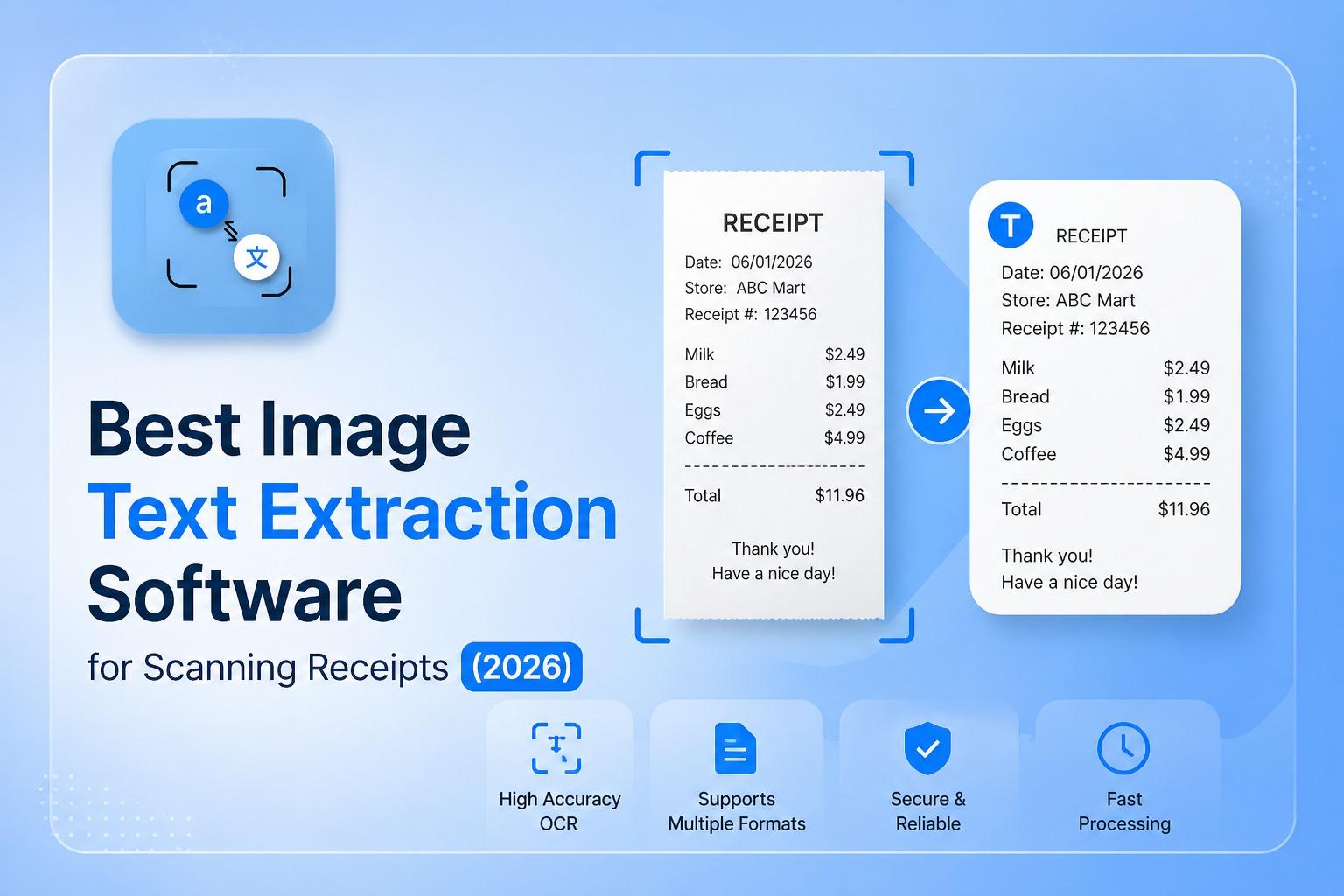
You capture a photo of a receipt. Now what? Getting that text out, the vendor name, the total, and the date used to mean typing it all by hand. Not anymore.
Today, several tools can extract text from image files instantly, whether it is a crumpled paper receipt, a faded thermal printout, or a screenshot of a digital order.
In this guide, we compared 5 options so you can find the right one for your situation, whether you need a quick free scan or a full business expense workflow.
What to Look for in Receipt Scanning Software
Not all OCR tools handle receipts the same way. Receipts are harder to process than a regular document the fonts are small, the paper fades, and the layout variations wildly from one shop to the next. Before picking a tool, consider.
Accuracy on low quality images
Thermal paper fades fast. Your tool should handle low contrast and slight blurring.
Structured output
Does it extract raw text, or does it identify specific fields like vendor, total, and date?
Ease of use
Are you uploading an image online, or does it require installing software or writing code?
Price
Several solid tools are completely free for personal use. Business use often requires a paid plan.
Language support
If you deal with receipts in different languages, a tool with translation built in is an extra feature.
5 Best Tools to Extract Text from Receipt Images
1. PhotoTranslator.net
If you want to extract text from a receipt image without creating an account or paying anything, an Online photo translator is the simplest starting point. You upload your photo and get the text back in seconds.
What makes it useful after basic OCR is the built in translation. If you are traveling and dealing with receipts in another language, the online photo translator handles both steps in one go reading the text and converting it to your language.
Best for: Individuals who need a fast, free image to text converter with optional translation.
Free: Yes, no signup required.
Limitation: Not built for bulk processing or accounting software integration.
2. Google Lens
Google Lens is built into most Android phones and available on iOS through the Google app. Point your camera at a receipt and it reads the text in real time.
It works well for quick lookups, reading a price, copying a phone number, or checking a total. However, it returns unstructured text without identifying which field is the vendor or the subtotal. For simple needs, that is fine. For expense tracking, you will likely need to copy and sort the data yourself.
Best for: Normal users who already have it on their phone and need a quick scan.
Free: Yes.
Limitation: No structured data output. Not ideal for systematic expense management.
3. Adobe Scan
Adobe Scan is a free mobile app that turns your phone camera into a document scanner. It uses OCR to make the scanned text searchable and editable, and saves documents directly to Adobe's cloud.
If you already use Adobe Acrobat or Adobe's PDF tools for work, this fits naturally into your workflow. The receipt scan exports as a searchable PDF, which is handy for record keeping. Advanced editing and export features are available only with the Adobe subscription.
Best for: People who manage documents in Adobe Acrobat and want receipt scanning in the same ecosystem.
Free: Free app, some features require an Adobe subscription.
Limitation: Full functionality is tied to Adobe plans. No direct accounting integration.
4. CamScanner
CamScanner is one of the most downloaded document scanning apps globally. It captures receipts through your phone camera, applies image Improvement to improve clarity, and extracts the text using OCR.
A Simple feature is its export flexibility you can save extracted text as Word, Excel, PDF, or plain text. It also includes translation and Markup Tools making it better than a basic scanner. The free version is functional, though it adds a watermark to exports.
Best for: Mobile users who want multiple export formats and don't mind a freemium model.
Free: Free with watermark. Paid plans from around $4.99/month.
Limitation: Watermark on free exports. Heavy use of cloud storage.
5. Microsoft OneNote
This one surprises most people. Microsoft OneNote has a built in OCR feature that almost nobody knows about. Paste or insert any image into a OneNote page including a photo of a receipt then right-click the image and select "Copy Text from Picture." The extracted text goes straight to your clipboard.
It requires no extra app, no subscription beyond what you may already have, and works on both Windows and Mac. For Windows users who process receipts occasionally, this is a genuinely underrated free option.
Best for: Windows and Microsoft 365 users who want a free, no-fuss OCR without installing anything new.
Free: Yes, included with OneNote free version available.
Limitation: Manual process. No structured field extraction for expense reporting.
Quick Comparison: Which Tool is Right for You?
Here is a step by step summary to help you decide:
PhotoTranslator.net Free, no signup, great if you also need to translate text from an image. Best for personal use.
Google Lens Free, always on your phone. Good for a quick one-off scan. No structured output.
Adobe Scan Free app, good PDF output. Best if you are already an Adobe user.
CamScanner Feature rich mobile app. Best if you want flexible export formats.
Microsoft OneNote Completely free hidden OCR. Great for Windows users processing receipts occasionally.
Frequently Asked Questions
Can I extract text from a receipt photo on my phone for free?
Yes. Both Google Lens and PhotoTranslator.net are completely free and work directly from a phone photo. Google Lens is built into most Android phones. Picture words translate works in any mobile browser, no app download needed.
What is the difference between OCR and a photo translator?
OCR (optical character recognition) reads and extracts text from an image. A photo translator does that and then converts the extracted text into another language. If your receipts are in a foreign language, using an online photo translator saves you the extra step of copy pasting into a translation tool.
Which tool is best for scanning multiple receipts quickly?
For personal use with occasional volume, CamScanner batch scanning works well. For businesses processing high numbers of receipts.
Does receipt OCR work on handwritten receipts?
It depends on the handwriting. Modern AI-powered tools handle clear handwriting reasonably well, but accuracy drops significantly on messy or cursive writing. Printed receipts always give more reliable results.
Which One Should You Use?
For most people reading this, the answer is simple: start with a free tool and see if it covers your needs.
If you want something instant with no setup, PhotoTranslator.net or Google Lens gets the job done in under a minute. If you are already inside the Microsoft or Adobe ecosystem, OneNote or Adobe Scan is the most continuous choice.
The best image text extraction software is the one that fits how you actually work, not the one with the most features.