
You try to copy a line of text from a PDF. You drag across it, right-click, hit copy, and nothing happens. Or worse, you paste it somewhere and get a jumbled mess of broken characters that make no sense at all.
This is one of the most common frustrations people run into when working with documents. And the reason it happens is simpler than you think. Not all PDFs are the same. Some contain real, selectable text. Others are just images of text, a photograph of a page saved as a PDF file. Your computer sees a picture, not words, so copy-paste does not work.
The good news is that getting text out of an image-based PDF is completely possible. You do not need to retype anything manually. You just need the right approach, and this guide walks you through exactly that.
Why Copy/Paste Fails on Some PDFs
Before jumping into solutions, it helps to understand what is actually going on.
When a document is scanned, a paper contract, a printed report, a handwritten form the scanner takes a photo of it and saves that photo as a PDF. Everything looks like a normal document on screen, but underneath it is just an image. There is no text layer for your computer to grab.
This is called an image-based PDF or a scanned PDF. It is different from a text-based PDF, which was created digitally from a Word document or Google Doc and always has selectable text.
A few other situations also cause copy-paste to fail. Some PDF creators lock their files with permissions that block text selection. Others use design software that converts text into shapes so even though it looks like words, the computer sees it as drawn paths, not characters.
In all of these cases, the fix comes down to one technology: OCR, which stands for Optical Character Recognition. It reads the visual content of an image, identifies the letters and words it sees, and converts them into real, usable text.
How to Tell If Your PDF Is Image-Based
Before using any tool, spend five seconds checking what type of PDF you have. This saves time and tells you exactly what approach you need.
Open the PDF on your phone or computer. Try clicking directly on a word. If a cursor appears and you can highlight individual letters, the PDF contains real text, and a simple copy-paste should work, or the file may just have permission restrictions.
If nothing happens when you click no cursor, no highlight, no selection at all, you are dealing with an image-based PDF. The text is locked inside a picture, and you will need OCR to get it out.
A quick second test: try using Ctrl+F (or Cmd+F on Mac) to search for a word you can see on the page. If the search finds nothing, that confirms there is no text layer. You are working with an image.
Step-by-Step: How to Extract Text from a Scanned PDF
Here is the simplest process that works directly in your browser, on any device, with no software installation needed.
Step 1: Take a screenshot of the PDF page
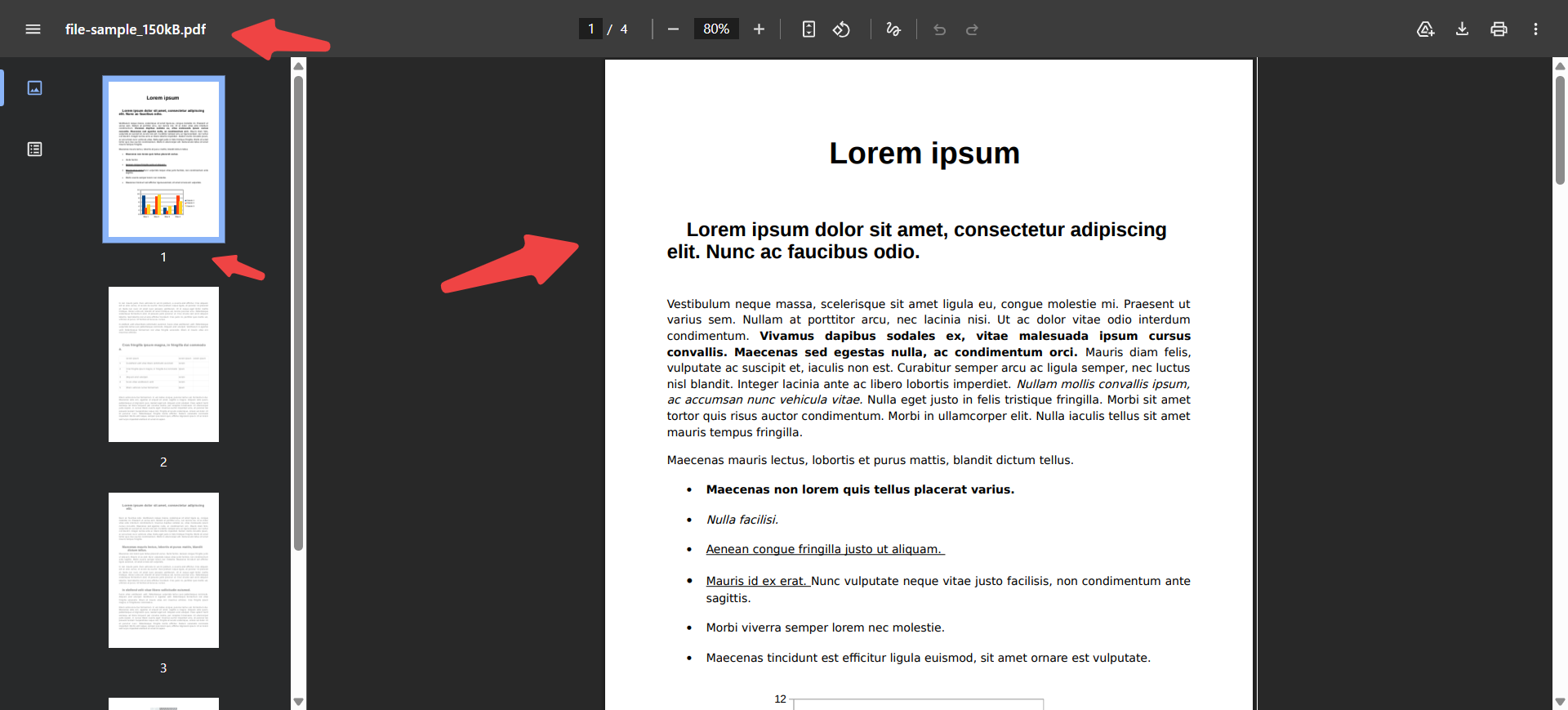
Open your PDF and navigate to the page containing the text you need. Take a screenshot of that page. On Windows, use the Snipping Tool or press Windows + Shift + S. On Mac, press Cmd + Shift + 4. On a phone, use your device's screenshot function.
If your PDF has multiple pages, screenshot each page separately. Working one page at a time gives much cleaner results than trying to process an entire multi-page document in one go.
Step 2: Upload the screenshot to a photo to text tool
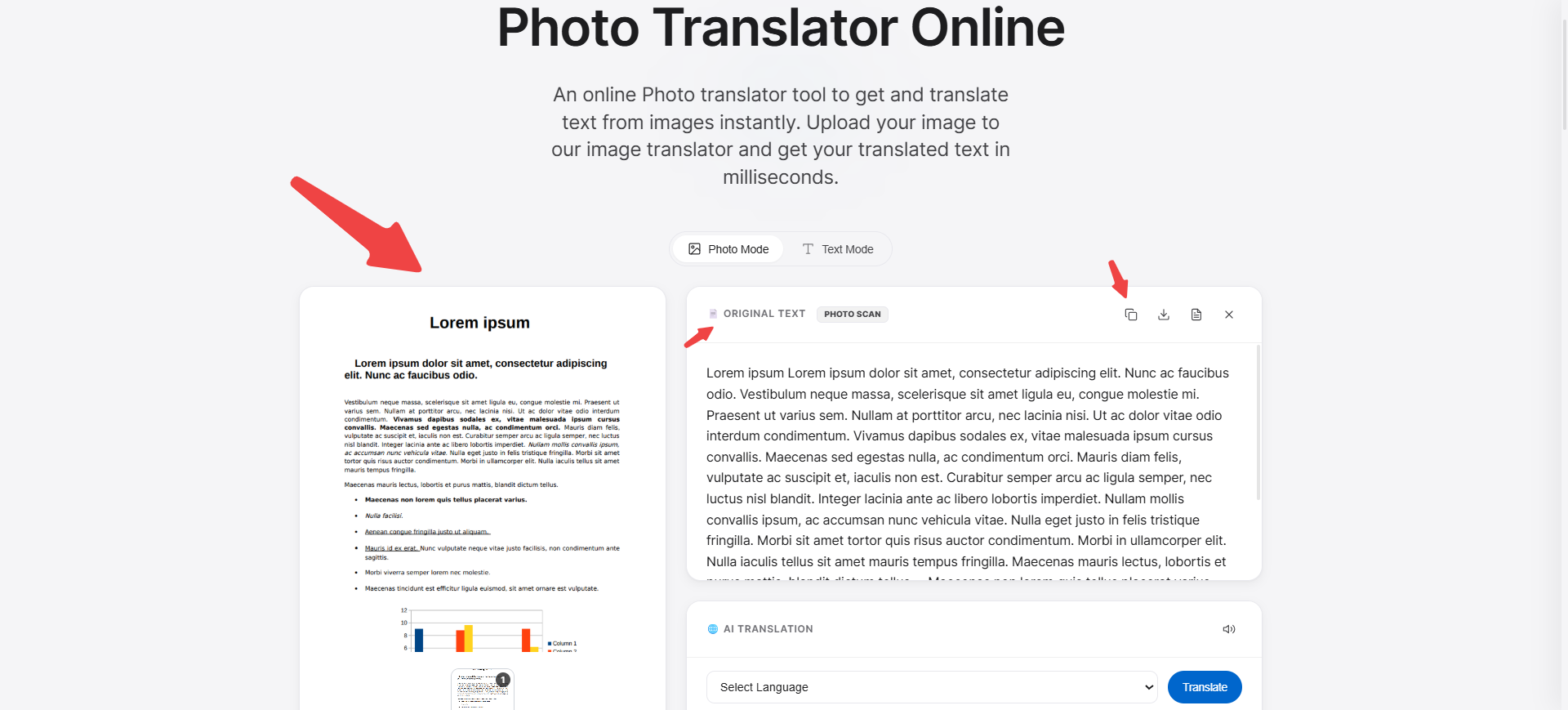
Go to phototranslator.net and upload your screenshot. The tool uses OCR to scan the image, read all the visible text, and pull it into editable form. This works on any device phone, tablet, or laptop entirely in your browser.
Step 3: Copy the extracted text
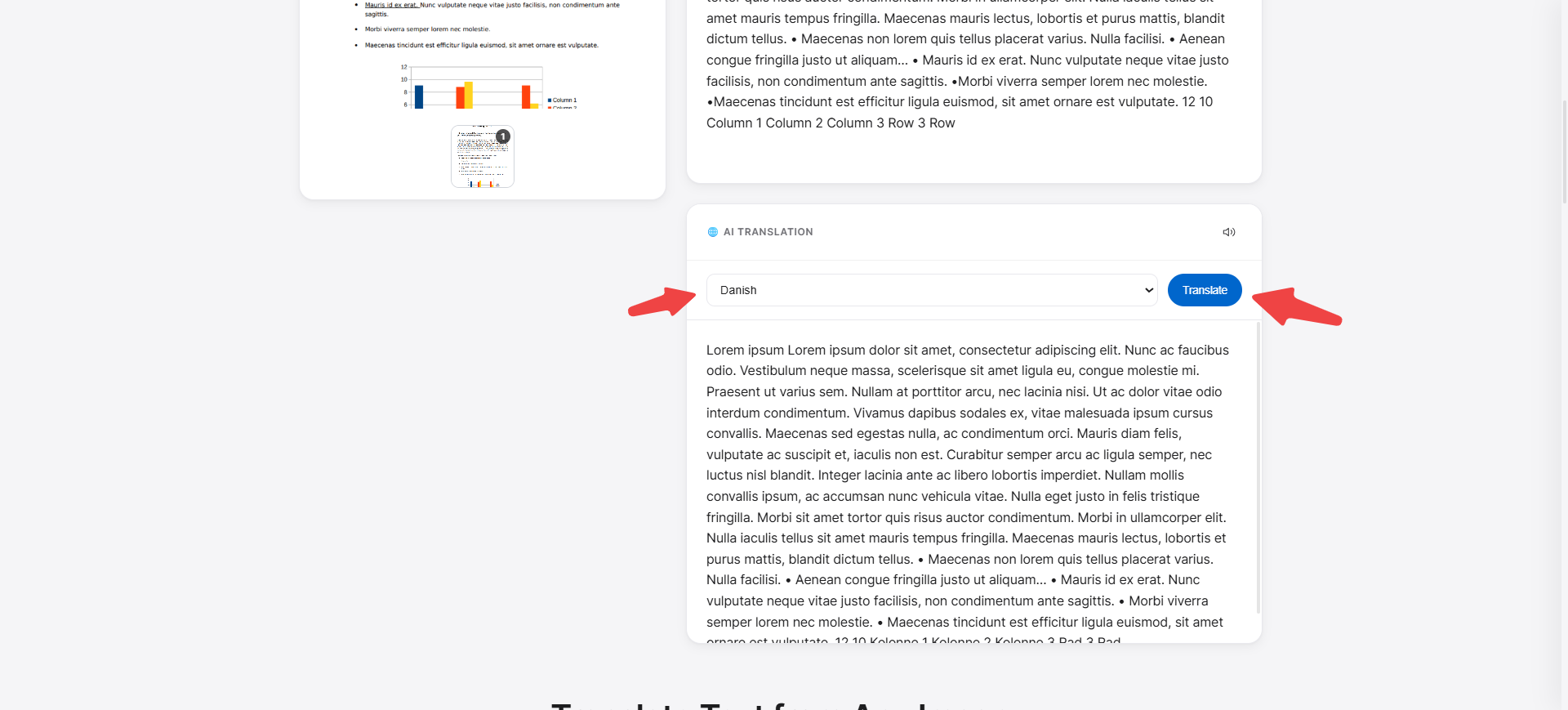
Once the text appears, select all of it and copy it into wherever you need a Word document, an email, a notes app, or a spreadsheet. The whole process from screenshot to copied text typically takes under two minutes.
And you have to see, once you extract text, then you have to translate into any language as you want, as you can also see in the screenshot. For example, you want to translate your pages into the Danish language.
What About Multi-Page Scanned PDFs?
If you have a long scanned document, say, a 20-page contract or a full report, screenshotting every page is not practical. For these situations, a slightly different approach works better.
Some browser-based tools accept PDF files directly rather than just images. You upload the whole PDF, the tool runs OCR across every page, and outputs the full text. Google Drive actually has this built in for free.
Upload your scanned PDF to Google Drive. Right-click on the file and choose "Open with Google Docs." Google will automatically run OCR on the PDF and open it as an editable document. The formatting may not be perfect, especially for complex layouts, but the text itself comes through accurately for most standard documents.
This method is completely free, requires no extra accounts or tools, and handles multi-page documents well. It is a reliable backup when you are dealing with a large file rather than a single page.
For documents where accuracy really matters, such as legal paperwork, medical records, and financial statements, it is always worth reading through the extracted text once before using it. OCR is highly accurate on clean, clear scans, but can occasionally misread characters in very small fonts or low-quality images.
Why Image Quality Makes a Big Difference
The single biggest factor affecting how well text extraction works is not which tool you use it is the quality of the image or scan you start with.
A sharp, well-lit, high-contrast scan produces near-perfect results. A blurry, faded, or skewed scan makes even the best OCR engine struggle.
If you have control over the original scan, a few adjustments make a real difference. Scan at 300 DPI or higher most modern scanners default to this, but cheaper ones sometimes default lower. Make sure the document is lying flat so the text is not warped or curving at the edges. Use good lighting if scanning with a phone camera, and avoid shadows falling across the page.
If you are working with an existing scan you cannot redo, cropping it tightly to remove background noise before uploading it tends to improve results. The less visual clutter around the text, the more accurately the tool reads it.
This is the same principle that applies to extracting text from photos taken on a phone lighting, angle, and clarity are the three variables that matter most.
Common Situations Where This Comes Up
Scanned contracts and agreements: Legal documents that were printed, signed by hand, and then scanned back to PDF. The signature makes them image-based.
Old reports and records: Archival documents that predate digital formatting. Anything printed before roughly 2005 is likely scanned if it is in PDF form.
Bank statements and invoices from older systems: Some financial institutions still send statements as scanned PDFs rather than generated text documents.
Textbook pages and academic papers: Students often scan pages from physical books or printed journals and need the text for notes or citations.
Forms filled in by hand: Any PDF that was originally a form, printed out, filled in by hand, and then scanned back.
In all of these cases, the text is real, it is right there on the page but it exists only as pixels in an image. OCR bridges the gap between what you can see and what your computer can actually use.
Understanding how OCR technology works at a deeper level explains why image quality matters so much. The process relies entirely on recognizing visual patterns of letters, which becomes much harder when those patterns are blurry, skewed, or low-contrast.
When Nothing Seems to Work
Sometimes you will run into a PDF where even OCR gives poor results. This usually happens for one of three reasons.
The scan resolution is very low, below 150 DPI, which means there is not enough detail in the image for any tool to reliably read. If you have access to the original document, rescanning at a higher quality is the best solution.
The document contains handwriting. Printed text and handwriting are handled very differently by OCR engines. Printed text extraction is highly reliable. Handwriting recognition has improved significantly, but still varies depending on how neat the handwriting is and which tool you use.
The PDF uses an unusual font or language script that the OCR engine does not handle well. Most tools work excellently with standard Latin scripts, English, French, Spanish, German, and so on. For languages like Arabic, Chinese, or Devanagari, make sure the tool you are using explicitly supports that script before relying on the output.
If accuracy is critical and OCR is not delivering clean enough results, the most reliable fallback is still manual retyping for short sections. For longer documents where retyping is not realistic, a professional document conversion service is worth considering.
Frequently Asked Questions
Q: Why can't I copy text from my PDF?
A: The most common reason is that your PDF is image-based it was created by scanning a physical document, so there is no actual text layer inside the file. You need OCR to convert the image into selectable text before you can copy anything.
Q: How do I extract text from a scanned PDF for free?
A: Screenshot the page you need and upload it to a browser-based OCR tool. Alternatively, upload the full PDF to Google Drive and open it with Google Docs. Google runs OCR automatically at no cost.
Q: Does Google Docs work for extracting text from scanned PDFs?
A: Yes. Upload the PDF to Google Drive, right-click it, and choose Open with Google Docs. Google's built-in OCR reads the document and converts it to editable text. It works well for standard printed documents, though formatting may shift on complex layouts.
Q: Can I extract text from a PDF on my phone?
A: Yes. Screenshot the PDF page and upload the image to a browser-based OCR tool on your phone. The whole process works in a mobile browser, no app download needed.
Q: Why is my extracted text full of errors?
A: This usually means the original scan quality is low. Blurry images, skewed pages, or very small fonts all reduce OCR accuracy. Try cropping the image tightly to the text area and re-uploading. If the original scan is of poor quality, rescanning the physical document at a higher resolution gives the best improvement.
Q: Can OCR read handwritten text in a PDF?
A: It depends on the tool and how neat the handwriting is. Modern OCR handles clear printed handwriting reasonably well but struggles with cursive or irregular writing. For critical handwritten content, checking the output manually is always recommended.
Q: What if the PDF is password protected?
A: Password protection is a separate issue from image-based PDFs. If you have the password, enter it first to unlock the document and check whether the text becomes selectable. If it does, no OCR is needed. If the text is still not selectable after unlocking, the content is image-based, and you can proceed with OCR.
Closing Thoughts
A PDF that will not let you copy its text is not a dead end, it is just an image that needs to be read properly.
The most practical approach for most people is also the simplest: screenshot the page, upload it to a browser-based tool, and copy the result. It takes less than 2 minutes, works on any device, and requires no installation.
For multi-page documents, Google Drive's built-in OCR is a free and reliable option that handles the whole file in one step.