
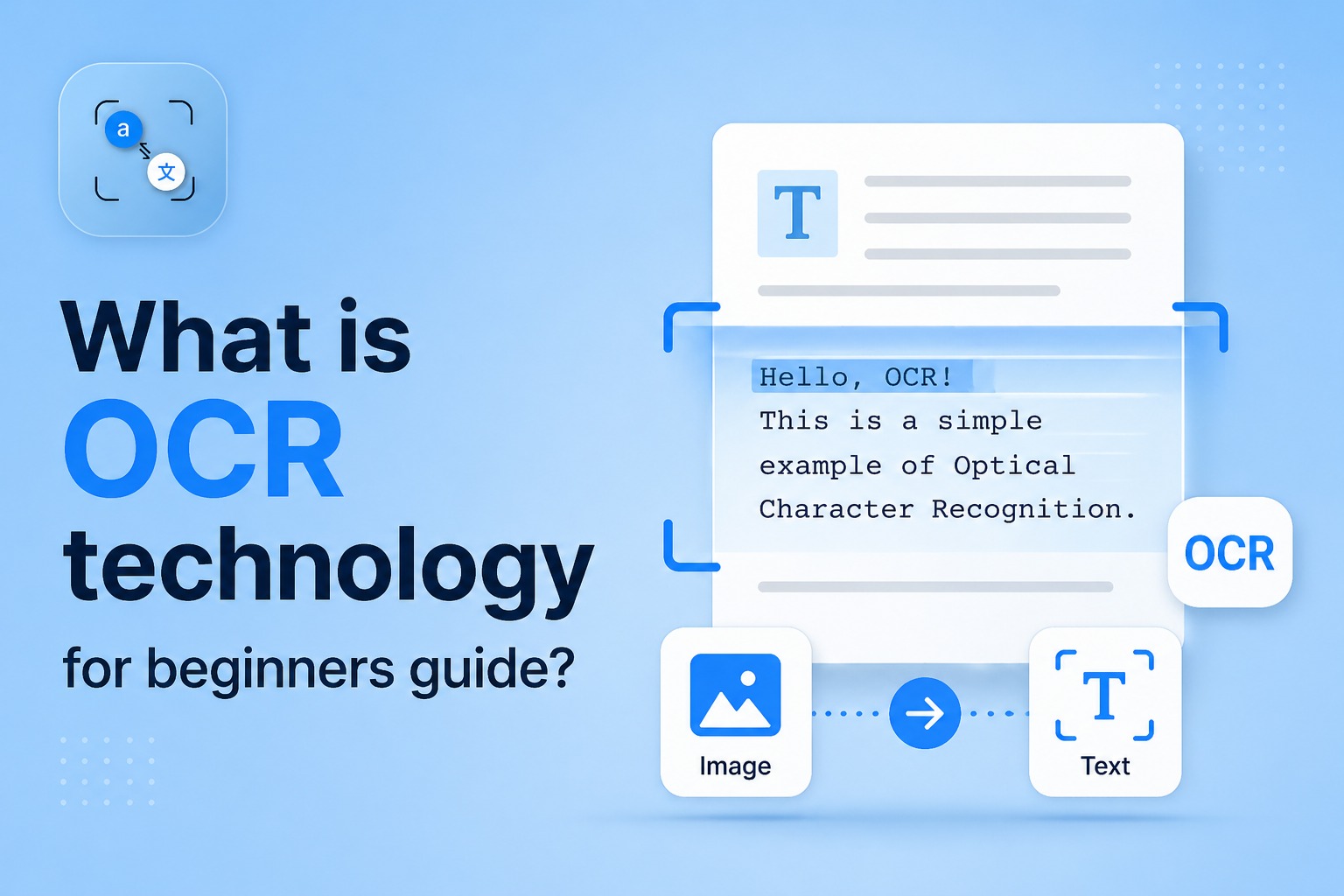
If you had taken a photo of something written on paper and wished you could just copy that text? That is exactly what OCR does.
OCR stands for Optical Character Recognition. In simple words, it is a technology that looks at an image and reads the letters and numbers inside it, just like your eyes do, but done by a computer.
In this guide, we will explain how OCR works, how you can use it for free on your phone or computer, and which tools give you the best results even for blurry photos.
How Does OCR Work? Step by Step
You think OCR Technology is complicated, but the idea behind it is very simple. Here is what happens when you upload an image to an OCR tool:
Step 1: You upload an image. This can be a photo you took with your phone, a scanned document, or even a screenshot.
Step 2: The tool looks at the shapes. The software scans every pixel and finds shapes that look like letters, numbers, or symbols.
Step 3: It matches the shapes to characters. It compares those shapes to millions of known letters and figures out what each one is.
Step 4: It gives you the text. The result is plain, editable text that you can copy, paste, search, or translate.
Modern OCR tools also use AI to understand context, so even if a letter is slightly unclear, the tool can often guess it correctly based on the surrounding words.
It is Curious how Google does this? Read more at Google Cloud Vision, one of the most powerful OCR engines available.
How to Extract Text from Image on Phone
You do not need a computer or any special software. Your phone is enough. Here are the easiest ways to do it:
Option A: Use PhotoTranslator.net
Open your phone's browser and go to PhotoTranslator.net. Tap the upload button, pick a photo from your gallery, and you will see the text appear in seconds & in same time, you will upload 3 images and extract text at the same time from 3 images and translate then in to any language. Our tool also has a voice option for your clarification. No app to install, no account needed. It also lets you translate the text into another language right away very useful if the image is in a different language.
Option B: Use Google Lens
If you have an Android phone, Google Lens is likely already there. Open the camera app, point it at any text, and tap the text on your screen to copy it. iPhone users can find Google Lens inside the Google app.
Both options are completely free. For most people, these two cover everything they need.
OCR Software for Small Business Free Options
If you run a small shop, a home business, or work as a freelancer, OCR can save you a lot of time. Here are the best free options:
● PhotoTranslator.net Best for scanning receipts, invoices, or any document image. Free with no signup.
● Microsoft OneNote has a hidden OCR feature. Insert an image, right click it, and select Copy Text from Picture. Totally free for personal use.
● Adobe Scan Turns your phone camera into a scanner. Saves as a searchable PDF. Good for keeping records.
● Google Drive Upload any image to Google Drive, open it with Google Docs, and the text is automatically extracted. A clever free trick most people do not know about.
For most small businesses, these free tools are more than enough. You only need a paid tool if you are processing hundreds of documents every day.
Want to know which paid tools are worth it? Read our comparison: Top OCR Software on G2
How to Convert an Image to Text Free Online
No downloads, no installs. Here is the simplest way to convert an image to text, right from your browser:
Step 1: Go to PhotoTranslator.net. Open the site on any browser phone or computer.
Step 2: Upload your image. Click the upload area, then select your photo, screenshot, or scanned file.
Step 3: Wait a second. The tool reads the image and gets out all the text automatically.
Step 4: Copy or translate. Copy the text to use anywhere, or click translate if you need it in another language.
It works with JPG, PNG, and most common image formats. There is no file size trap or hidden paywall the basic image to text converter is completely free.
How to Read Text from a Blurry Photo
Blurry images are the biggest challenge for any OCR tool. Here is what actually helps:
● Increase brightness before uploading. A dark or shadowy photo is much harder to read than a bright, evenly lit one.
● Use your phone's edit tools to sharpen the image. Even basic sharpening in your gallery app can improve results.
● Crop tightly around the text. Remove space around the edges it helps the tool focus on what matters.
● Retake the photo if possible. Hold your phone steady, get closer, and tap the screen to focus before shooting.
No OCR tool reads a very blurry image perfectly. The cleaner the photo, the more accurate the result.
Frequently Asked Questions
Q: Is there free OCR software for small business use?
A: Yes. Microsoft OneNote, Google Drive, Adobe Scan, and Photo translator are all free. They cover most small business needs without any cost. If you need to process large volumes of documents daily, a paid plan may be worth it but for most small teams, the free options are more than enough.
Q: Can I translate an image into any language for free?
A: Yes. The Image to text extraction Tool supports many languages and is completely free. You upload your image, it extracts the text, and you can translate it right away. Google Lens also supports translation in real time from your phone camera at no cost at all.
Q: How do I translate text from a photo for free?
A: The easiest way is to go to our tool, upload your photo, and select the language you want. The site reads the text and translates it in one step. Google Lens on your phone does this too just point your camera and tap Translate.
Q: Can OCR read handwritten text?
A: It depends on the handwriting. If the letters are clear, neat, and separate, modern AI-powered OCR tools can often read them correctly. But messy handwriting, joined cursive, or faded ink gives even the best tools trouble. For printed text, accuracy is usually very high, above 95%.
Q: What does OCR mean in Hindi and Urdu?
A: OCR stands for Optical Character Recognition. In Hindi it is called प्रकाशीय अक्षर पहचान (Prakashiya Akshar Pahchan), and in Urdu it is آپٹیکل کریکٹر ریکگنیشن. Both simply mean "a system that reads characters from images using light and computer vision." Many online photo translator tools, including PhotoTranslator.net, support Hindi and Urdu text extraction.
The Bottom Line
OCR is not difficult. It is just a computer reading text from a picture the same way you would read a sign on the street.
If you want to try it right now for free, you do not need to install anything. Just open the photo translator on your phone or computer, upload an image, and see the text come out in seconds.
And if the text is in another language? The translate via image feature handles that all in one place, all free.